Map
The Map is the heart of Xopoz. Use it to see your position, follow your team in real time, measure distances, save places and navigate the world around you.
The Map Screen at a Glance
Every control on the map screen is numbered below. Buttons fade out after about 6 seconds without interaction so the map stays uncluttered — tap anywhere on the map to bring them back.
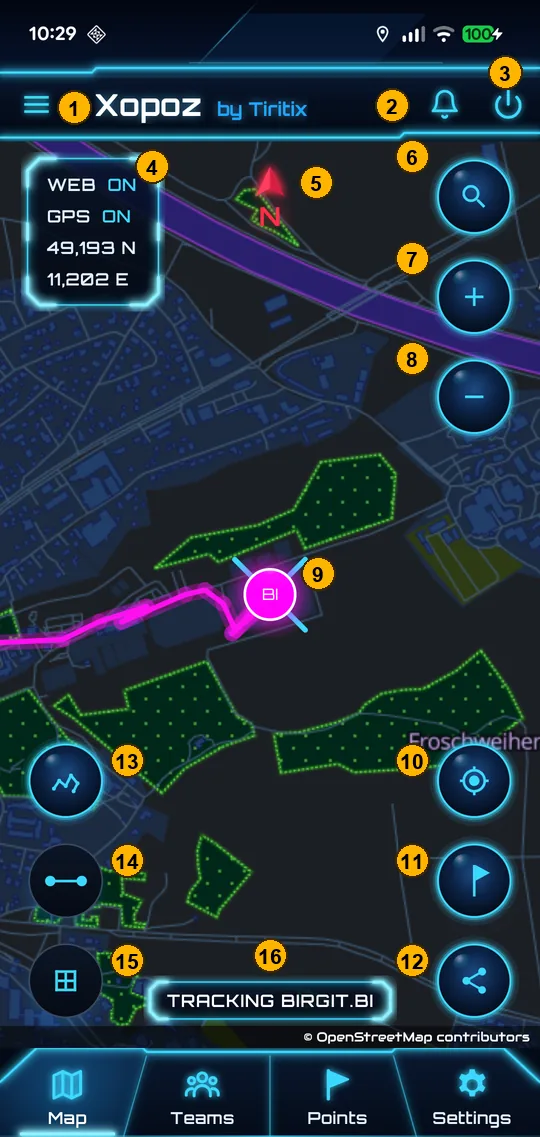
- 1Menu — opens the side menu (see Interface & Menu).
- 2Events — opens the Event Viewer with received alerts and messages.
- 3Close App — stops Xopoz completely, including background tracking.
- 4Status panel — server connection (WEB), GPS state and the coordinates of the map centre. Tap it to copy the coordinates.
- 5North indicator — the map is always north-up.
- 6Search Location — jump to a latitude / longitude.
- 7Zoom In — optional, enable it with the Zoom switch in the menu.
- 8Zoom Out — optional, same switch as Zoom In.
- 9The tracked device (here the team device
BI) and the cyan centre cross marking the exact map centre. - 10Centre on Me — return to your position and follow it.
- 11Add Point of Interest — save the map centre as a POI.
- 12Share Location — share the map centre as a link or text.
- 13Trail — show or hide trails and tracks.
- 14Measure — enter or leave distance measurement mode.
- 15Grid — show or hide the reference grid.
- 16Mode label — the current navigation mode: Tracking …, Free Nav or Measure.
A toggle button is on when it glows bright blue and off when it is dark. In the screenshot above, Trail is on while Measure and Grid are off.
Status Panel
The panel in the top-left corner gives you the health of the app at a glance:
| Line | Values | Meaning |
|---|---|---|
| WEB | ON / OFF | Whether Xopoz can reach the server. When OFF, positions and messages are queued and sent later. |
| GPS | INIT / ON / NO FIX / OFF | Starting up, receiving positions, searching for satellites, or location disabled on the phone. |
| Coordinates | e.g. 48.857 N / 2.356 E | The position under the centre cross. Tap the panel to copy the exact coordinates to the clipboard. |
Other indicators can appear on the map when needed:
- GPS Not Accessible — the location permission is missing (see Settings → Operating System Authorizations).
- Intraday blocked — tracking is paused by your daily start / stop times.
- collecting gps position… — shown at start-up until the first position arrives.
Three Navigation Modes
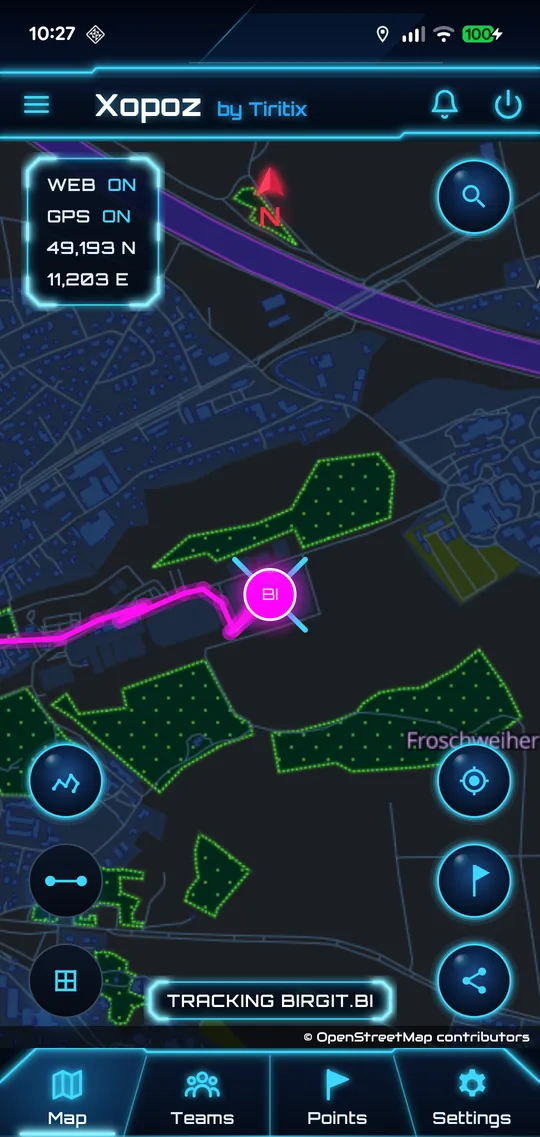
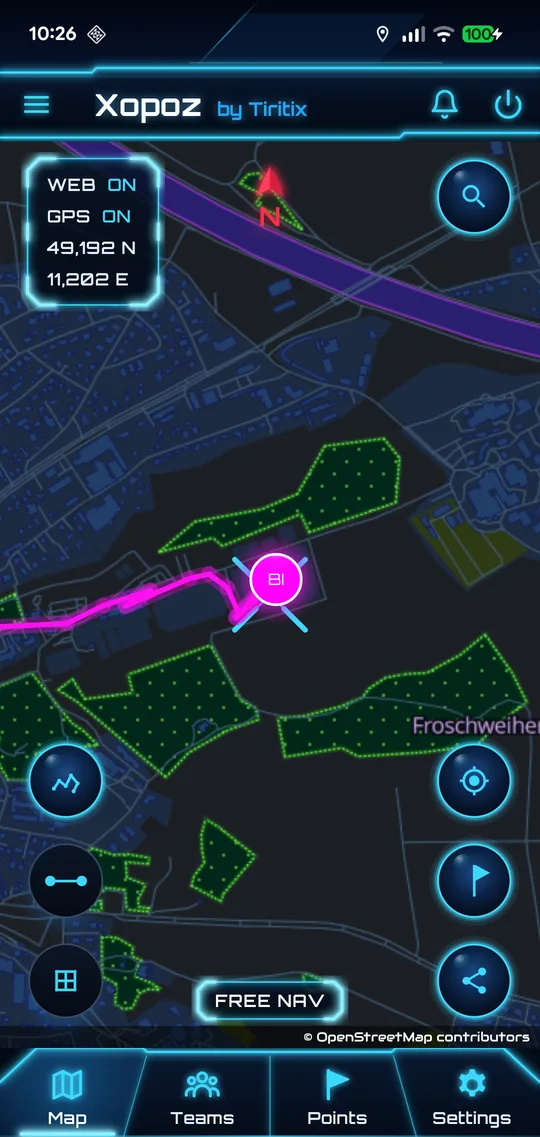
The label at the bottom of the map always shows the current mode.
Tracking Mode
The map automatically follows a selected device — your own (Tracking TxB) or a team device you selected. The view re-centres each time its position updates and your zoom level is preserved. Tap Centre on Me (10) to track your own device again.
Free Navigation Mode
You have full manual control — pan and zoom freely without any automatic re-centring. Live positions are still received and displayed, but the map does not move. The app switches to this mode automatically as soon as you touch the map.
Measurement Mode
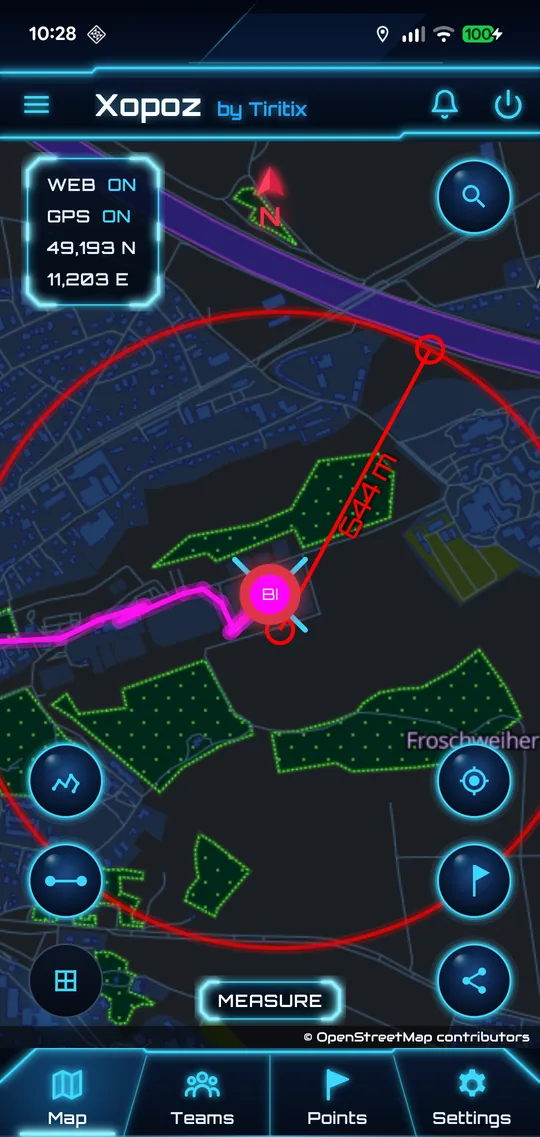
Tap the Measure button (14) to enter this mode; the label switches to Measure and the map stops moving so your taps are used for measuring.
- Tap the starting point. A small red circle marks it.
- Tap a second point. A red line shows the distance in metres or kilometres.
- A large red circle centred on the first point shows every place at that same distance.
- Tap again to move the second point. The measurement disappears 3 seconds after your last tap.
- Tap the Measure button again to return to your previous mode. It stays visible while you are measuring so you can always leave the mode.
Map Buttons in Detail
The map has seven round buttons, plus two optional zoom buttons. Toggle buttons glow when on and turn dark when off.
| Button | Name | What it does |
|---|---|---|
 | Search Location top right | Opens the coordinate search dialog and moves the map to the latitude / longitude you enter. |
 | Zoom In top right, optional | Zooms in one level. Shown only when the Zoom switch is on in the side menu. |
 | Zoom Out top right, optional | Zooms out one level. Same switch as Zoom In. |
 | Centre on Me bottom right | Returns to your GPS position and switches to Tracking mode for your device. |
 | Add Point of Interest bottom right | Saves the place under the centre cross as a private or shared POI. |
 | Share Location bottom right | Shares the place under the centre cross as a Google Maps link, a Xopoz link or text. |
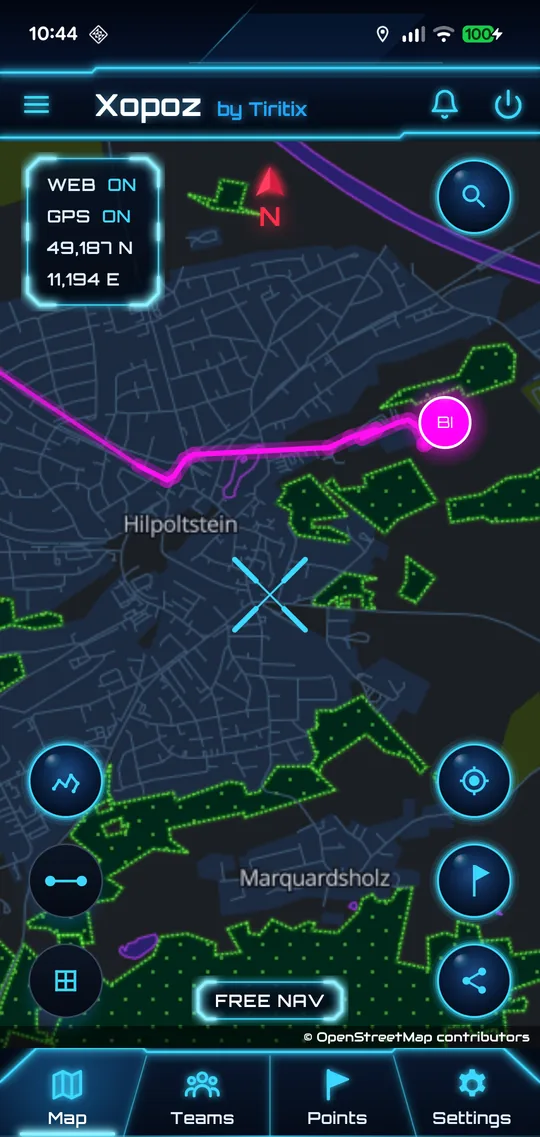
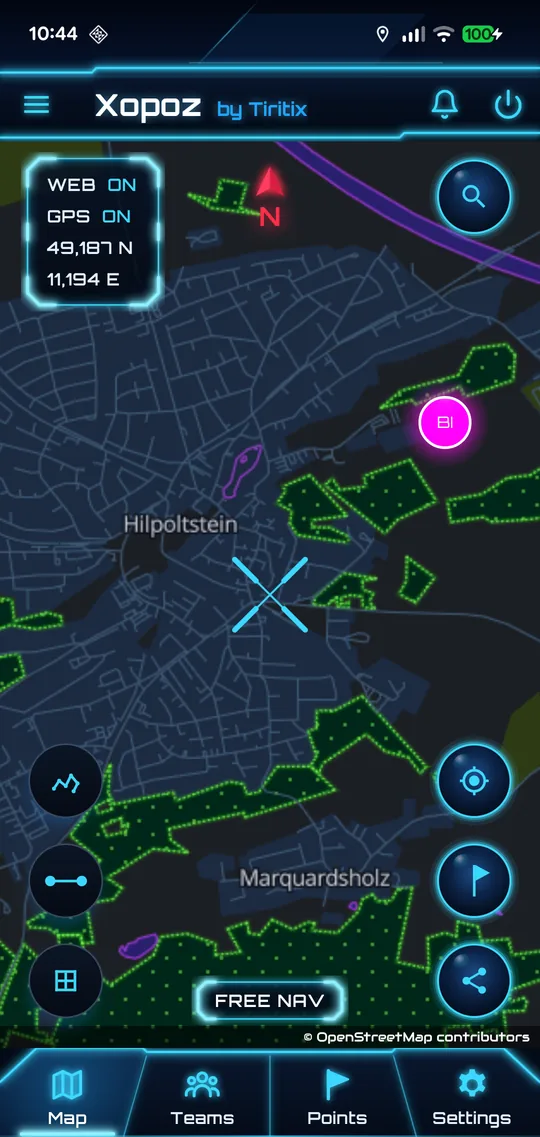
  | Trail bottom left · on / off | Shows or hides trails and imported tracks. Nothing is deleted when hidden. |
  | Measure bottom left · on / off | Enters or leaves distance measurement mode (red line and red circle). Stays visible while measuring. |
  | Grid bottom left · on / off | Shows or hides the square reference grid and its size label. |
Search Location (6)
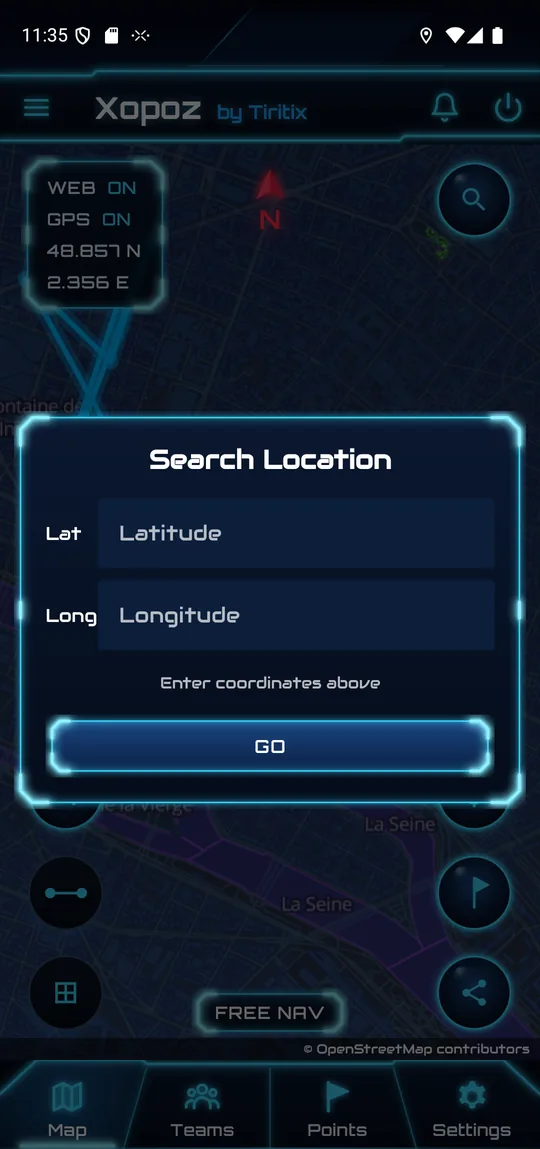
Type a latitude and longitude in decimal degrees (for example 48.85296 and 2.35010). The line under the fields confirms the location you entered. Tap GO to move the map centre there — useful to check coordinates received by message or to place a POI precisely.
Zoom In / Zoom Out (7, 8)
These buttons are hidden by default because you can pinch to zoom. Turn them on with the Zoom switch in the side menu. When the map is visible, the phone's volume up / down keys also zoom in and out — one press per level, hold to keep zooming. Handy with gloves.
Centre on Me (10)
Moves the map back to your current GPS position and switches to Tracking mode for your device. If no position is known yet, a Location not available message appears.
Add Point of Interest (11)
Saves the place under the centre cross as a Point of Interest — private or shared with a team. See Points of Interest for the full dialog.
Share Location (12)
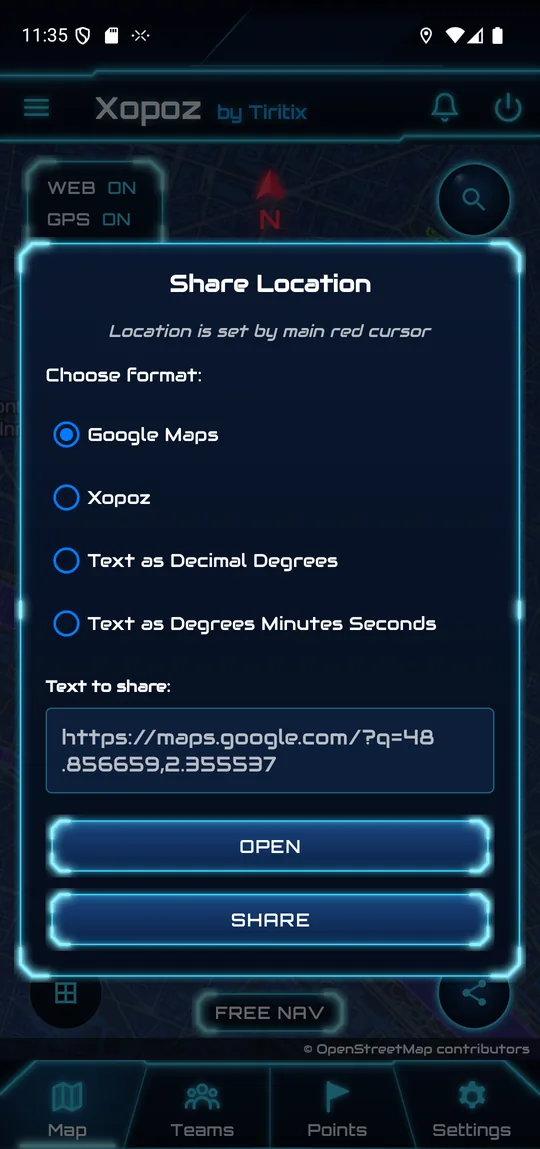
Shares the position under the centre cross. Choose a format:
- Google Maps — a
maps.google.comlink anyone can open - Xopoz — a link that opens directly in Xopoz
- Text as Decimal Degrees — e.g.
48.856659, 2.355537 - Text as Degrees Minutes Seconds — e.g.
48°51'24"N
The Text to share box previews the result. Open opens it in a matching app; Share sends it via SMS, email or any messaging app.
Trail (13)
Shows or hides your trail, your team's trails and your imported tracks. Hiding them never deletes anything — the history stays stored and reappears when you turn the button back on.
Grid (15)
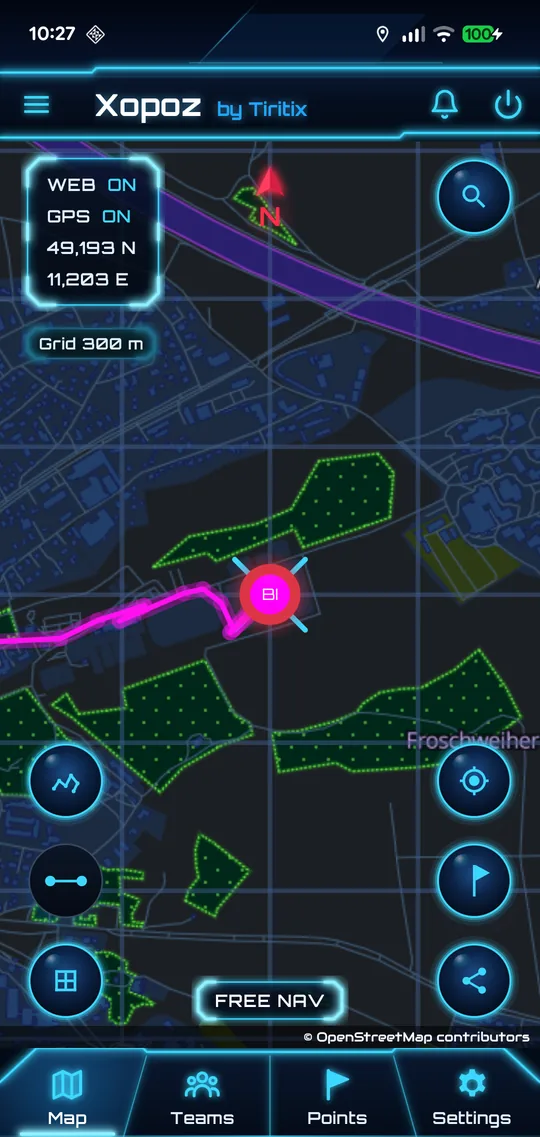
Draws a square reference grid over the map. A label such as Grid 300 m tells you the size of one square, and adapts when you zoom. Use it to estimate distances at a glance or to give precise directions to your team.
GPS & Position Tracking
Xopoz uses the direct Android GPS system (not Google Play Services), ensuring it works on all devices including custom ROMs.
Smart Battery Management
- Active mode: high-precision GPS + network when you are moving or the map is on screen
- Power-save mode: network-only tracking when you are stationary — saves battery with minimal accuracy loss
- Instant wake-up: GPS activates immediately when the screen turns on, you start moving, or the map is visible
- Gradual sleep: power-save kicks in after 5 minutes without movement
Movement Detection
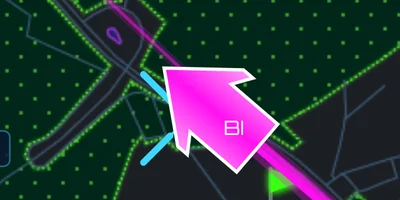
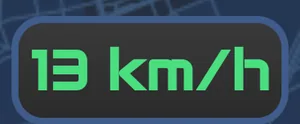
Movement is detected using a 50-metre threshold. When you are moving, your marker changes from a round icon to a directional arrow pointing where you are heading, and your speed is shown above the mode label.
Offline Device — Red Ring
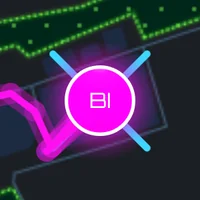
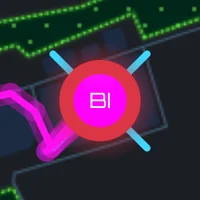
A thin white ring around a marker means the device is up to date. When a device has sent no position for more than 30 minutes, its ring turns into a thick red ring and its glow turns red. The marker stays at its last known position. It switches back to normal as soon as a new position arrives. This applies to your own marker and to every team device, round or arrow.
Location History Trails
The map shows a trail (line) of your recent path. Its length is set in Settings → Location Settings → Trail Duration, from 1 hour up to 10 days and 23 hours (default 12 hours).
Run Session
Start a timed session from the Run entry of the side menu. Xopoz switches to the map and shows a panel with:
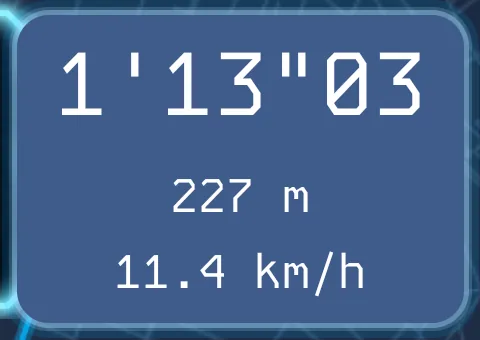
- Elapsed time — minutes, seconds and hundredths (here 1'13"03)
- Distance covered since the start
- Average speed in km/h
During a run, GPS stays in high-precision mode even when the map is not visible. The menu entry turns into Stop; tap it to end the session. The run is then saved automatically as a track in the my Runs group of the Track Manager (very short runs, with fewer than 10 points after filtering, are not saved). The panel disappears one minute after you stop.
Map Display Features
Custom Map Servers
You are not limited to a single map style. Choose a server and style from the side menu or in Settings → Map Settings, where you can also add your own raster tile server — private, enterprise or offline.
Reality and xScale
Two sliders in the side menu tune the look of the map: Reality controls how strongly the blue tint covers the map, and xScale changes the size of the map tiles to show more or less detail. See Interface & Menu.
Clean View
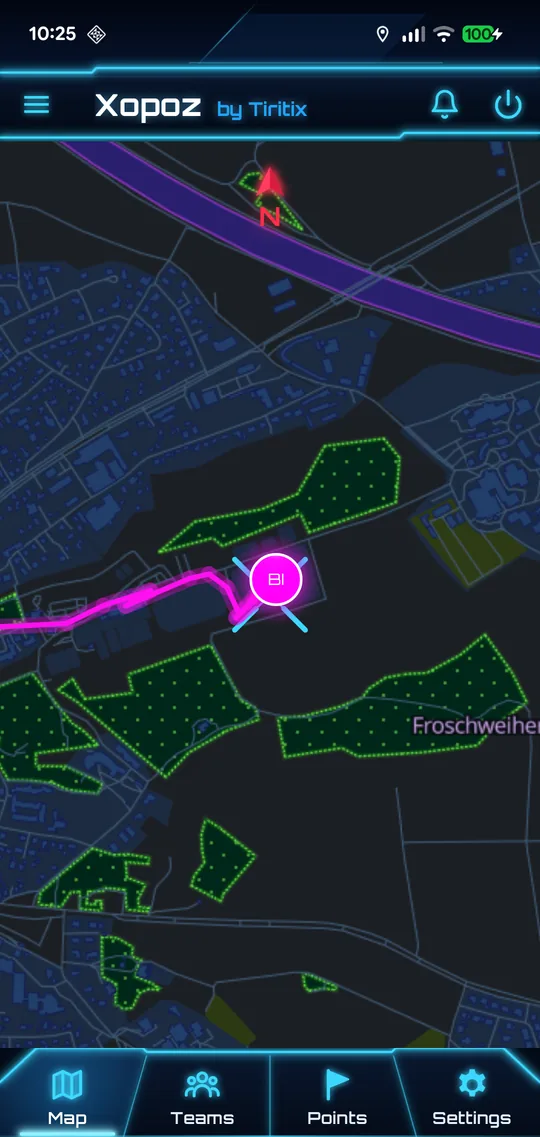
After about 6 seconds without interaction the buttons, the status panel and the mode label fade out, leaving only the map, the north indicator and the zoom buttons (if enabled). Tap the map once to bring everything back.
Compass & Heading Line
When the Compass switch is on in the side menu and your phone has a rotation sensor, hold the phone flat in portrait orientation to show the compass overlay.
- Compass circle — shows your real-time bearing (0–360°)
- Green highlight — the compass background turns green when you are aligned within ±10° of North
- Heading line — a line from your position to the edge of the screen showing exactly what you are pointing at. Useful for identifying distant landmarks or mountains
Team Members on the Map
Each team member's device appears as a marker containing its ticker or emoji, in its own colour. The marker adapts to show the device's current status:
- White border — device is online and actively sharing
- Red border (semi-transparent) — device is offline or not sharing
- Arrow shape — device is currently moving
- Round shape — device is stationary
Tap a team member's card in the Teams tab to jump to that device and track it on the map.