Teams
Create or join a team to start sharing your location with colleagues, family or friends. The Teams tab shows every device of your teams, its status and its distance from you.
How Teams Work
Xopoz treats each device as an independent tracking entity. If a person has two phones, both appear as separate entries in your team roster — each with its own position, status and distance.
By default, your location is kept entirely on your device and never shared. You must explicitly create or join a team to enable sharing. You can leave a team at any time to stop sharing.
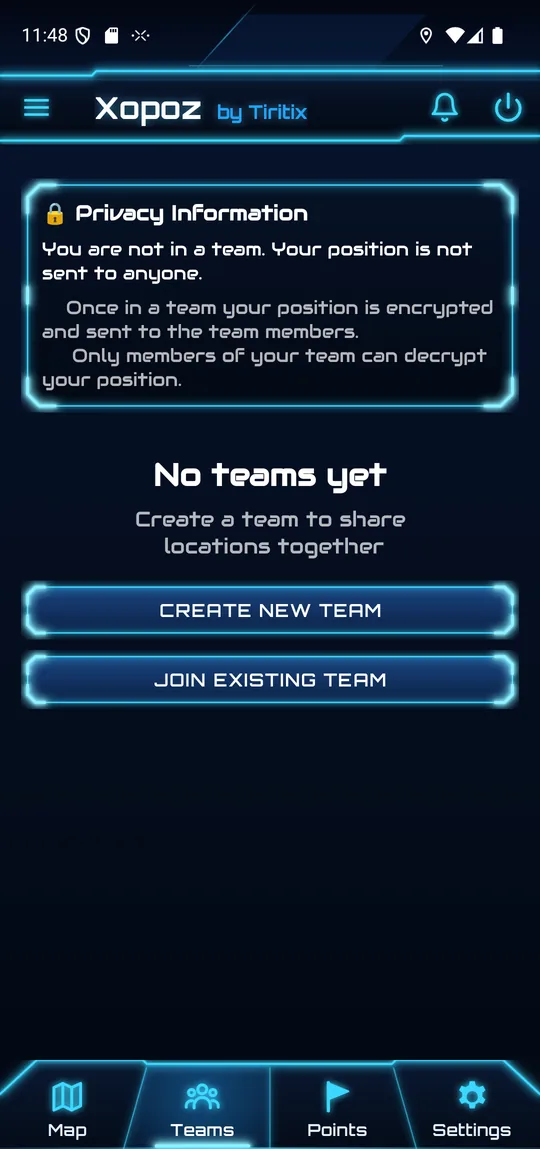
As long as you are not in a team, the Privacy Information panel confirms that your position is not sent to anyone. Two buttons get you started:
- Create New Team — start your own team and invite others
- Join Existing Team — enter or scan a team key you received
Creating a Team
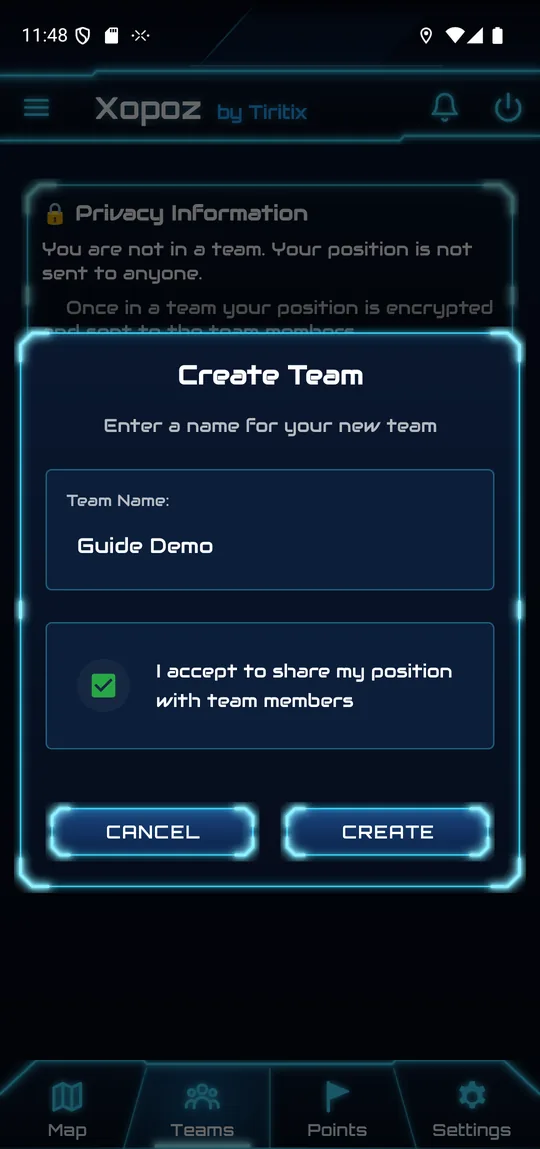
- In the Teams tab, tap Create New Team.
- Enter a team name.
- Tick I accept to share my position with team members — this records your consent.
- Tap Create. Your device is automatically added to the team.
- The app generates an encryption key for the team and stores it securely on your device. A challenge is sent to the server to prove key ownership — the server never receives the key itself.
The Team Card
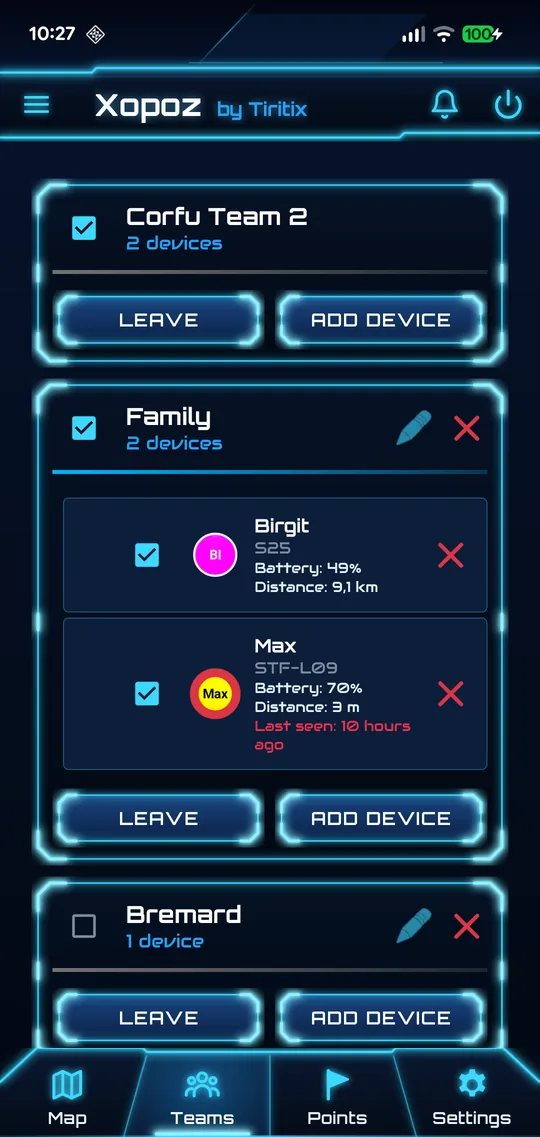
Each team is shown as a card:
- Checkbox — show or hide all devices of this team on the map
- Team name and the number of other devices (local only means you are still alone in the team)
- Pencil — rename the team or change its colour
- Red cross — delete the team
- Colour bar — the team colour
- Leave — leave the team and stop sharing with it
- Add Device — create the ticket that lets another device join
Below the card, one row per team device shows its marker, display name and ticker, last position time, online / offline state, role and its distance from you in metres or kilometres. Tap a row to jump to that device on the map. Pull down to refresh the list.
Editing a Team
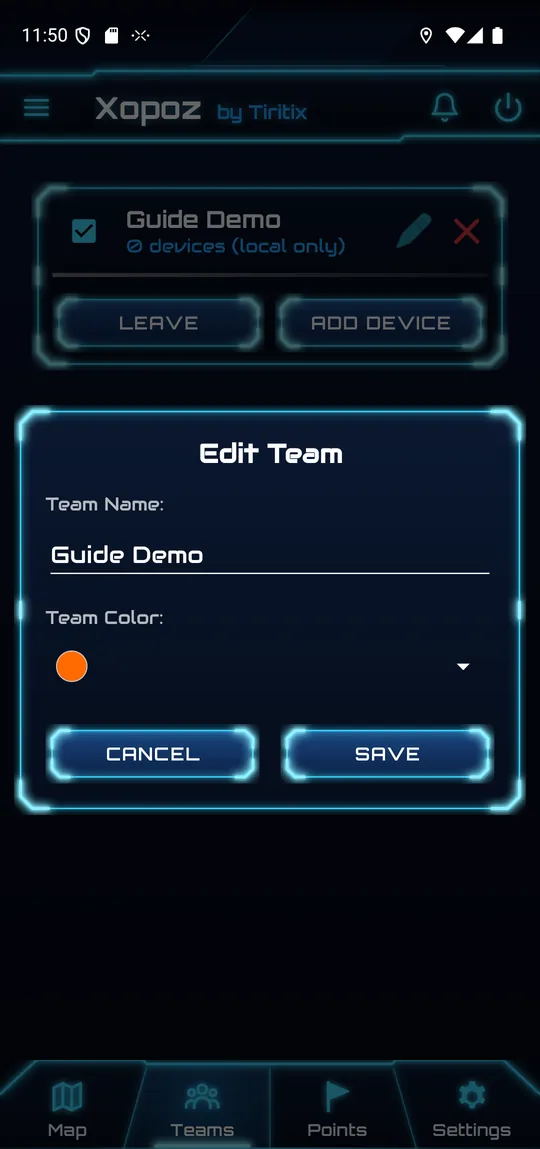
Tap the pencil to change the Team Name and the Team Color — Blue, Green, Yellow, Red, Purple, Orange, Pink, Teal, Gray, White or Dark. The colour is used for the team's bar and helps you recognise the team at a glance.
Member Roles
| Role | Capabilities |
|---|---|
| Creator | Full admin rights. Cannot be removed from the team. Generates invite tickets. |
| Admin | Can manage members and team settings. Can generate invite tickets. |
| Member | Standard participation — shares location and sees other members. |
Inviting Another Device
To add a new device to your team, you share a team key (also called a ticket).
Step 1 — Share the Team Key (existing member)
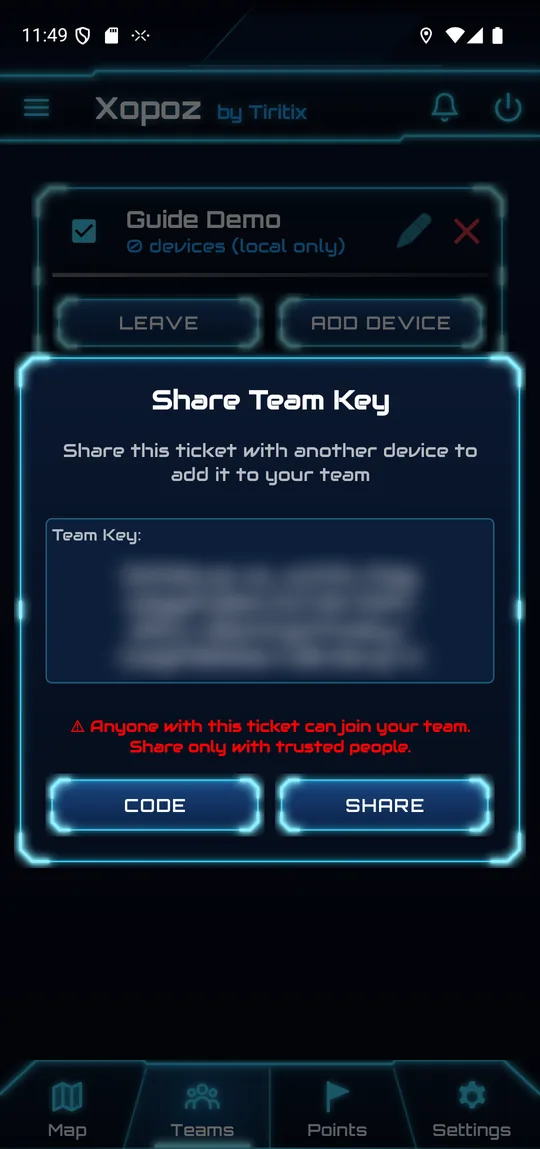
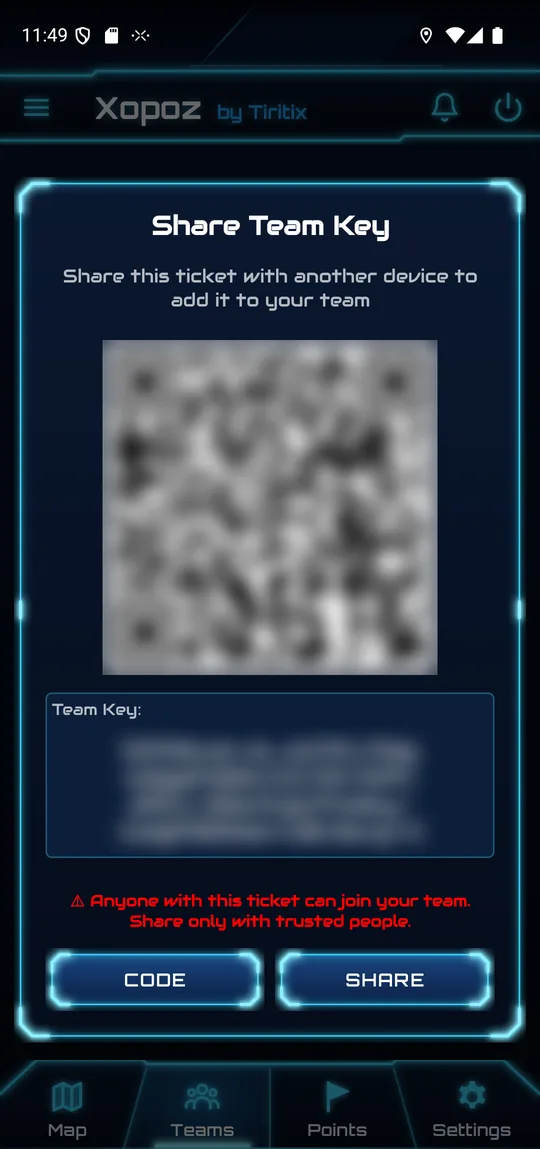
- Open the Teams tab and tap Add Device on the team card.
- The Share Team Key dialog shows the ticket in the format
[XPZ#teamId#key]. - Tap Code to display it as a QR code that the other phone can scan, or
- tap Share to send the text through SMS, email or a messaging app.
Step 2 — Join with the Team Key (new device)
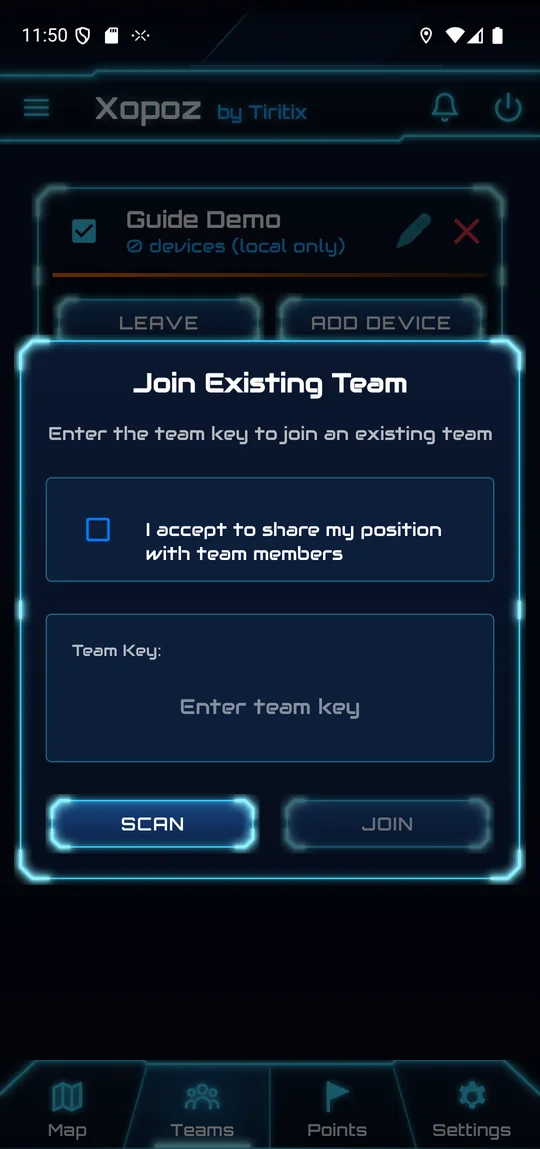
- Open Xopoz on the new device and go to the Teams tab.
- Tap Join Existing Team.
- Tick I accept to share my position with team members.
- Paste the key into the Team Key field, or tap Scan to read the QR code shown on the other phone.
- Tap Join. The app validates the key, stores it securely and completes team membership.
Controlling What You See on the Map
Each team and each device has an independent visibility checkbox in the Teams tab.
- Uncheck a team to hide all its devices from the map at once
- Uncheck an individual device to hide just that device
- Visibility preferences are saved locally and restored when you reopen the app
- Hidden devices are still active — they just do not appear on your map
Live Updates
Team member data refreshes automatically; pull down on the list to refresh immediately. Connection status for each member is shown in real time, so you always know who is actively sharing their location.