“System killed Xopoz”: Crash or Not?
What the warning means, and how to stop your phone from closing Xopoz in the background
📱 Recommended phone: Google Pixel
Real-time tracking depends on precise timing. Xopoz must receive positions and send them on time, without the operating system stopping or delaying it. Many manufacturers modify Android to save battery, and these changes close or slow down background apps. For these reasons, and after extensive testing on phones from different manufacturers, Xopoz recommends the Google Pixel series.
❓ Short answer
No, it is not a crash. The warning means your phone’s operating system closed Xopoz while it was running in the background. The phone does this to save battery. Xopoz only finds out the next time you open it, and then shows the warning.
When does the warning appear?
Xopoz keeps a small marker while it tracks your position. When Xopoz is closed normally, for example with the power button in the top-right corner, it removes the marker. If you open Xopoz and the marker is still there, Xopoz was stopped without warning. In that case it shows this message:
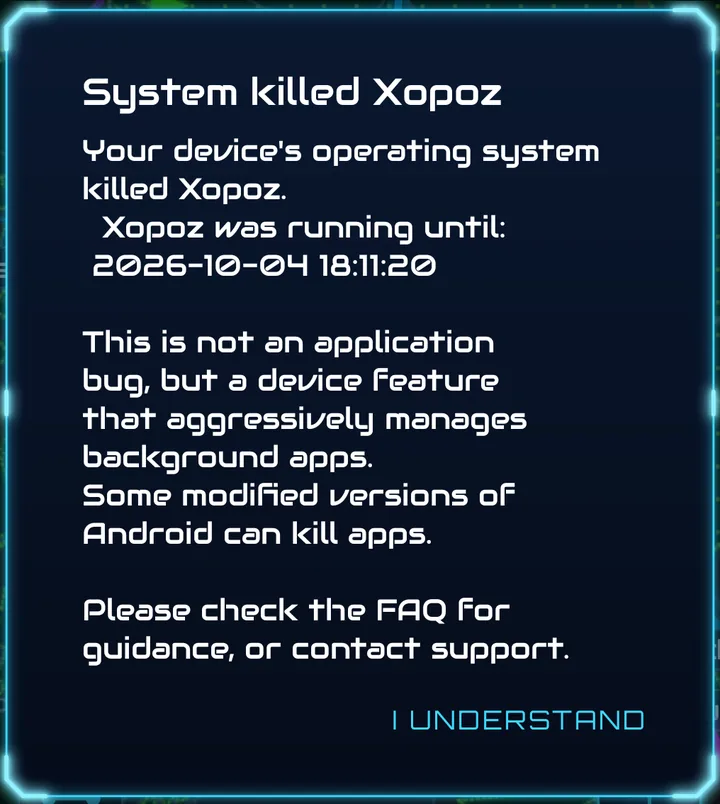
When Xopoz itself crashes, it records the error before it stops, and the next start shows a different message: “Xopoz crashed”. So if you see “System killed Xopoz”, Xopoz did not record any error. Something outside the app stopped it, almost always the phone’s battery manager.
⚠️ The time shown can be earlier than the real stop
“Xopoz was running until” shows the time of the last position Xopoz received. If you did not move for a while (at night, for example), the phone sent no new positions. Xopoz may still have been running for hours after that time.
A real example
A user with an Honor 9 (Android 9) saw the warning one morning and asked us whether the app had crashed again. Their log files showed this:
- 23:33: Xopoz saves its last position of the evening. The phone then stays still all night.
- Night: Xopoz keeps running in the background and checks in every hour.
- 08:25: The user uses the phone. Xopoz is still running and asks for a new position.
- Shortly after 08:27: The log stops. There is no error and no crash. The phone has closed Xopoz.
- 11:42: The user opens Xopoz. It shows the warning with the time 23:33, which is the last position received, not the moment Xopoz was closed.
Battery optimization was already turned off for Xopoz on that phone. Huawei and Honor phones have a second battery manager called App launch, and that one closed the app.
How to tell a crash from a phone kill
| Phone closed Xopoz | Real crash | |
|---|---|---|
| When it happens | In the background, often with the screen off | Usually while you are using the app |
| Message at next start | “System killed Xopoz” | “Xopoz crashed” |
| What to do | Change the phone settings below | Send a support ticket from the left menu: select Bug and check Include log files |
If you are not sure, send a support request anyway. We will check your logs and tell you which one it was.
Fix for Huawei and Honor phones: App launch
On Huawei and Honor phones (EMUI and Magic UI), App launch decides which apps may keep running in the background. By default, every app is set to Manage automatically. That lets the phone close Xopoz whenever it wants to save power. Switch Xopoz to manual so it is always allowed to run.
The screenshots below come from an Honor 9 with EMUI 9.1. On other models the menu names may be slightly different.
1. Open Battery settings
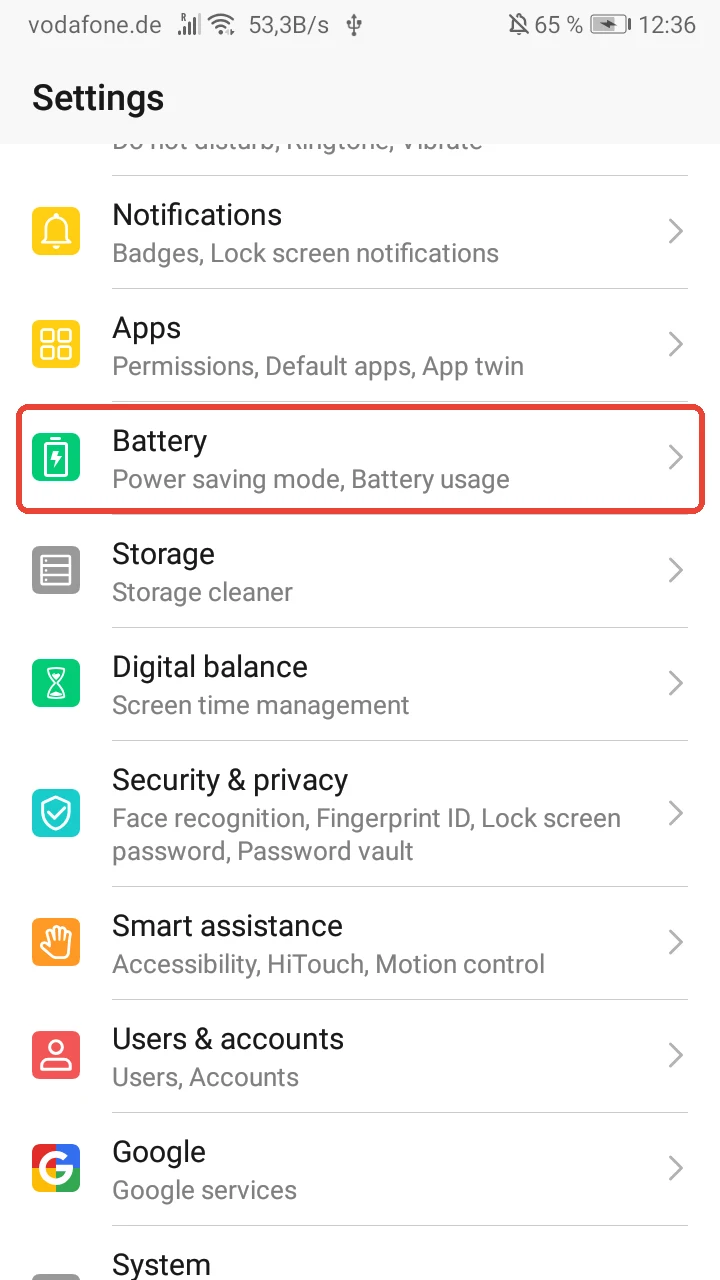
Open the Settings app and scroll down to Battery. Tap it.
2. Open App launch
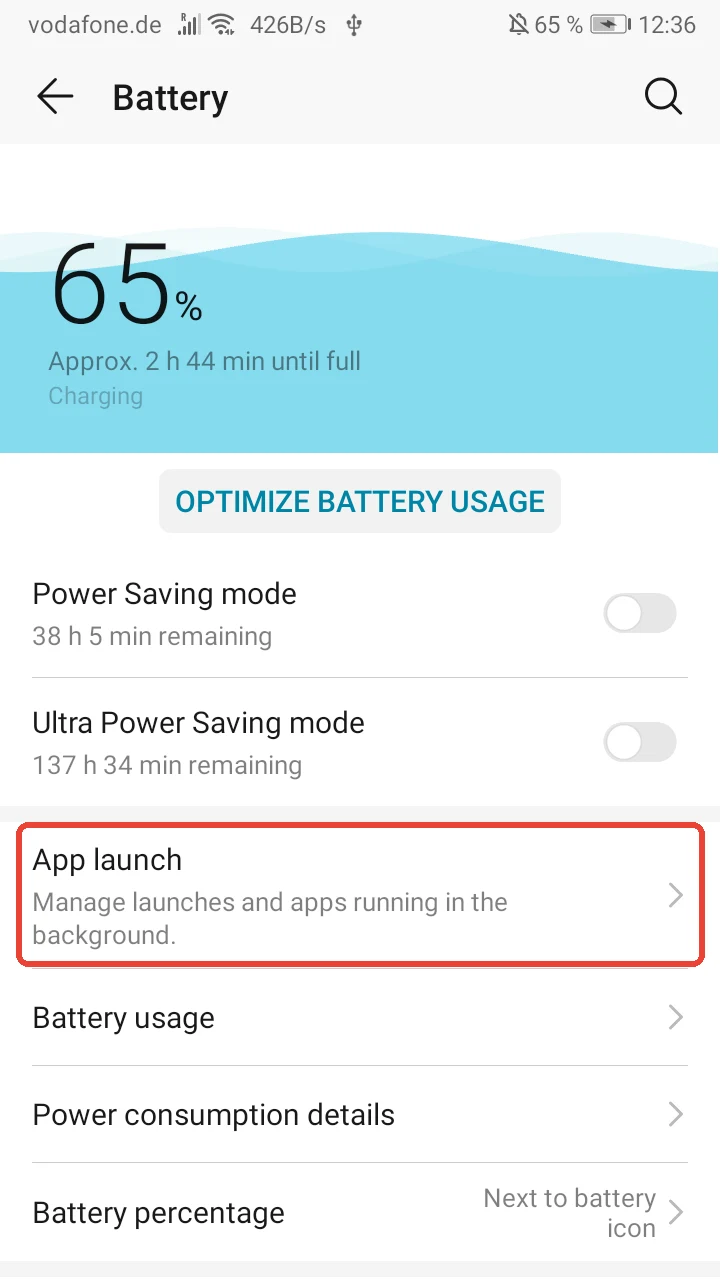
Tap App launch (“Manage launches and apps running in the background”).
3. Find Xopoz and turn its switch off
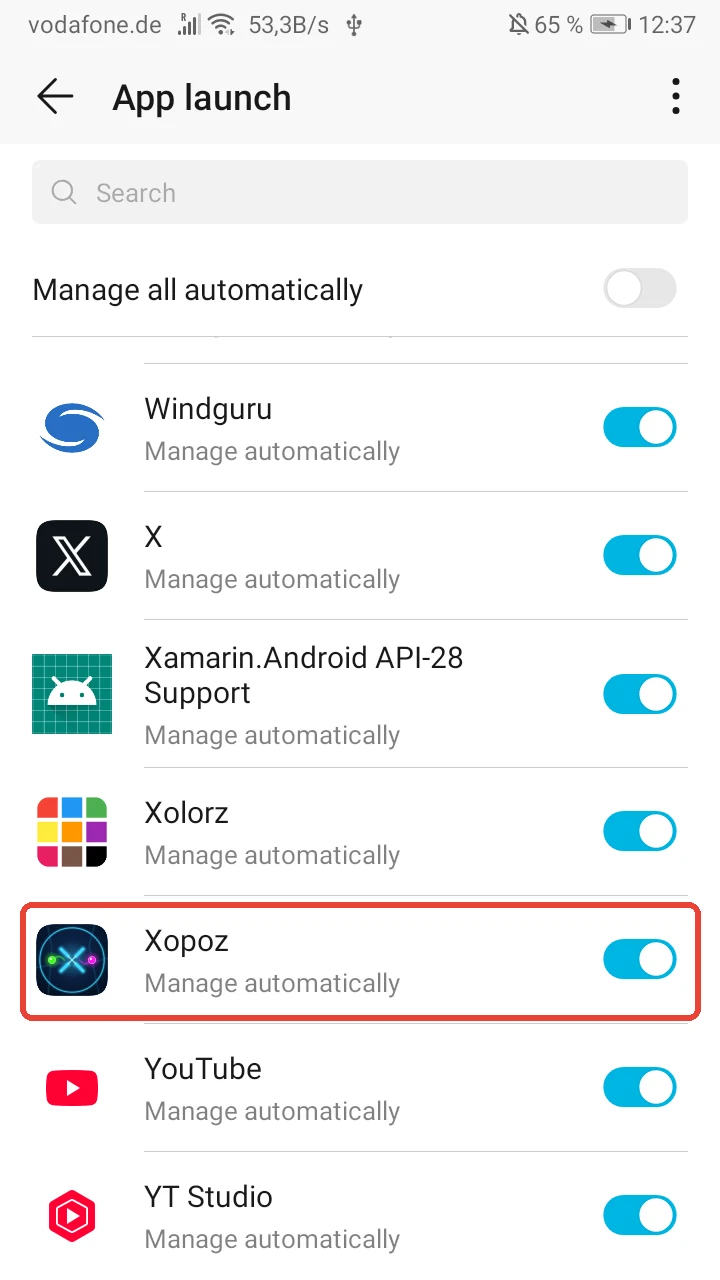
Scroll down the list until you see Xopoz, or type “Xopoz” in the search field at the top.
Xopoz shows Manage automatically and its switch is on (blue). Tap the switch to turn it off.
4. Allow all three options, then tap OK
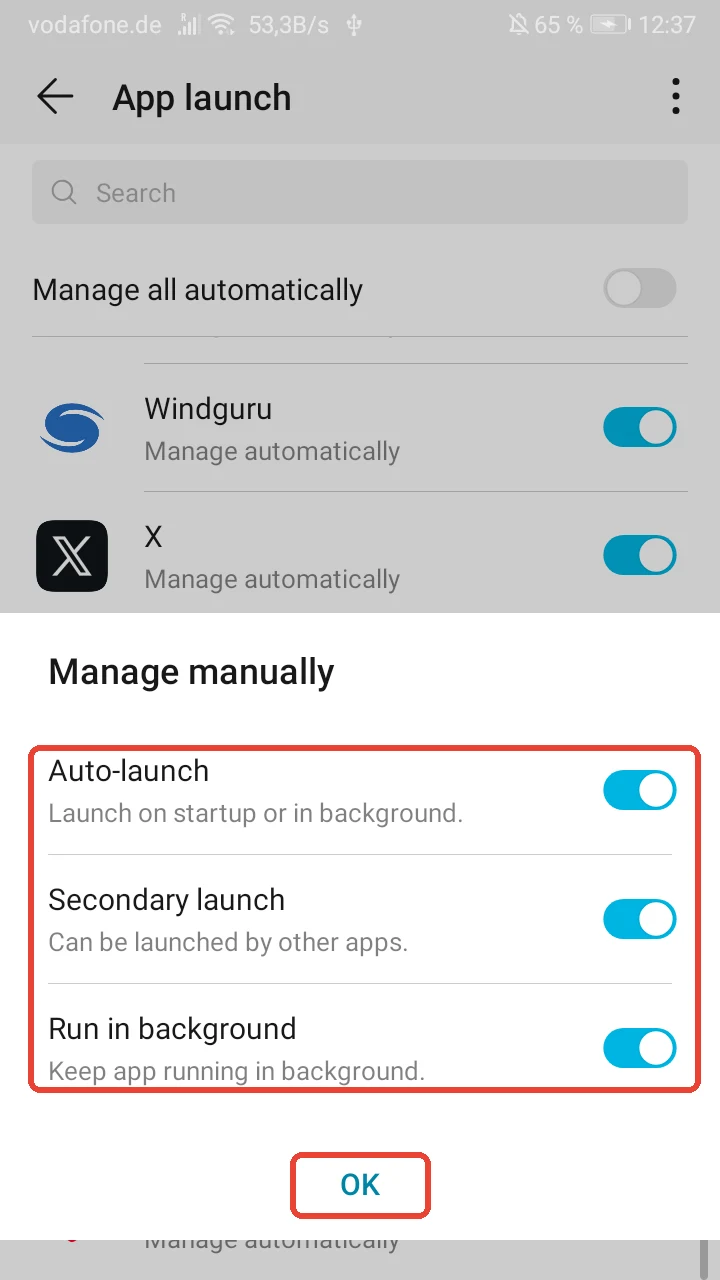
A Manage manually window opens. Make sure all three switches are on:
- Auto-launch: Xopoz can start when the phone starts, or in the background.
- Secondary launch: Xopoz can be launched by other apps.
- Run in background: the phone keeps Xopoz running while the screen is off. This is the most important one.
Tap OK.
5. Check the result
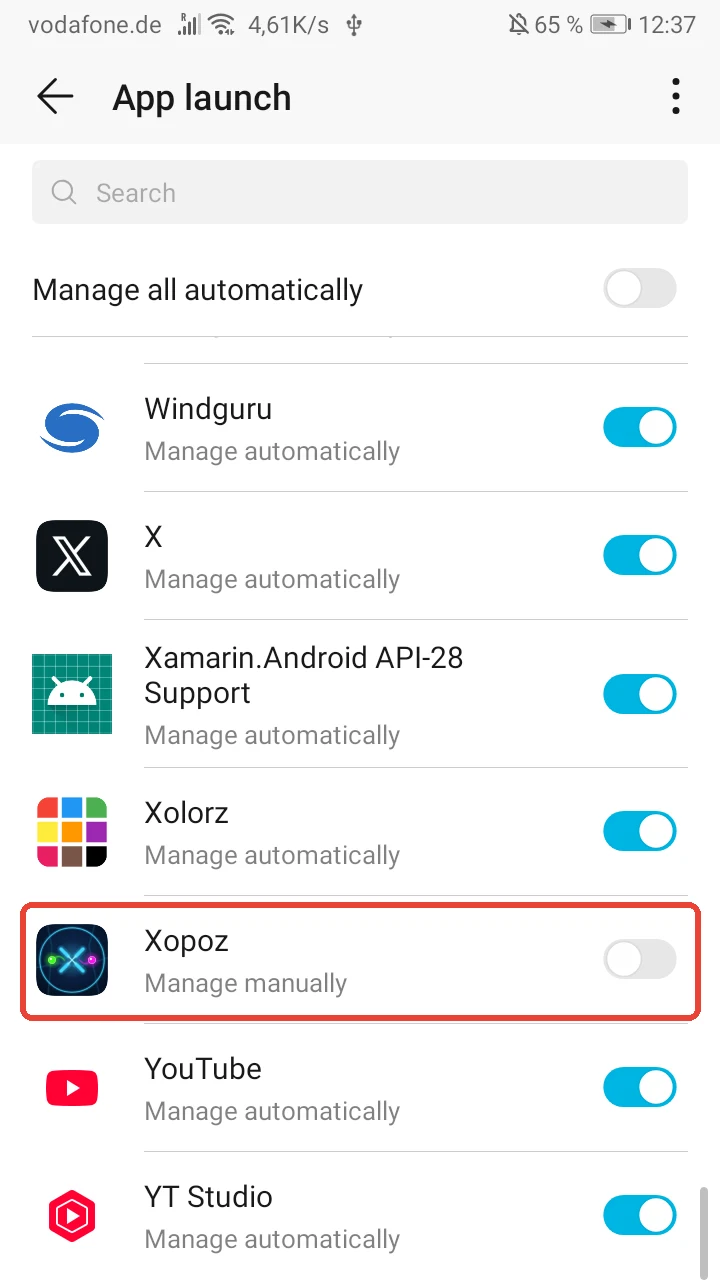
Xopoz now shows Manage manually and its switch is off (grey). This is correct: the switch only controls automatic management, which is now off for Xopoz.
Other apps stay on automatic. You do not need to change Manage all automatically.
Second fix for Huawei and Honor phones: Power consumption alert
App launch is not the only setting. Each app also has a Power consumption alert, and it is on by default. Xopoz uses GPS in the background, so the phone marks it as a power-hungry app (“Frequently checks your location. Force stop to save power.”). Turn this alert off for Xopoz.
6. Open Xopoz in the app list
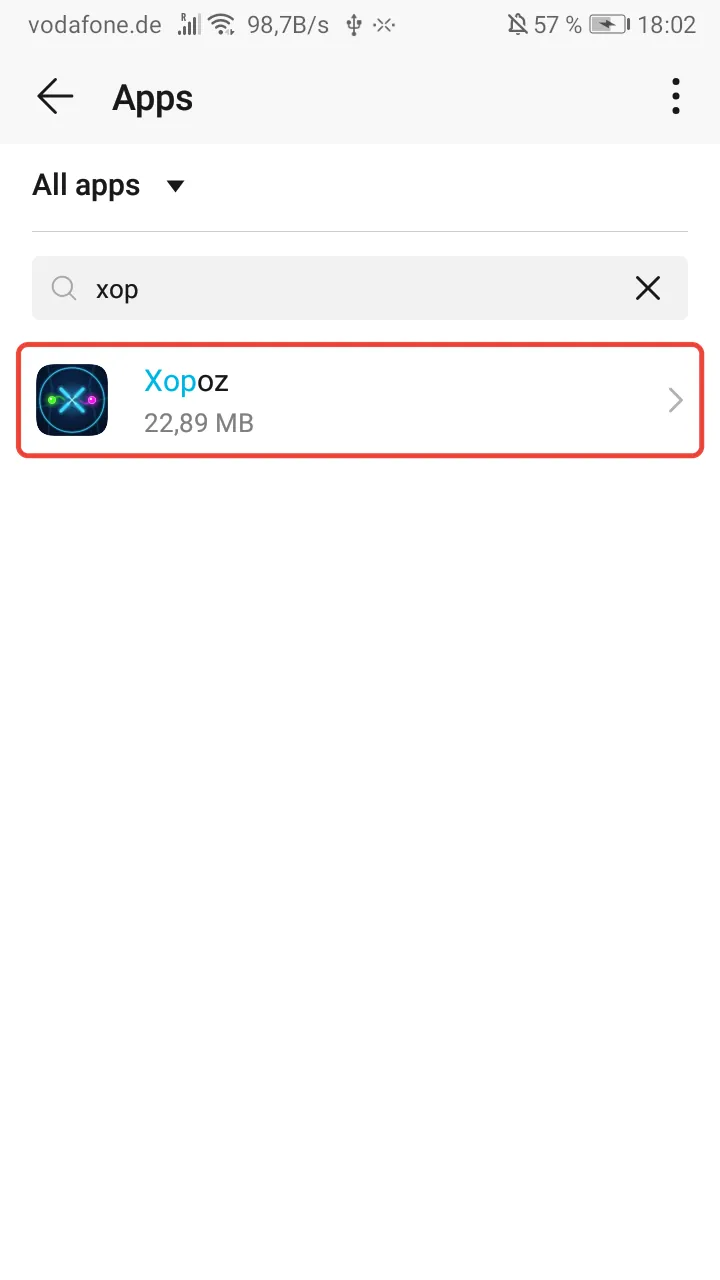
Open the Settings app and tap Apps, then Apps again.
Type “xop” in the search field and tap Xopoz.
7. Open Power usage details
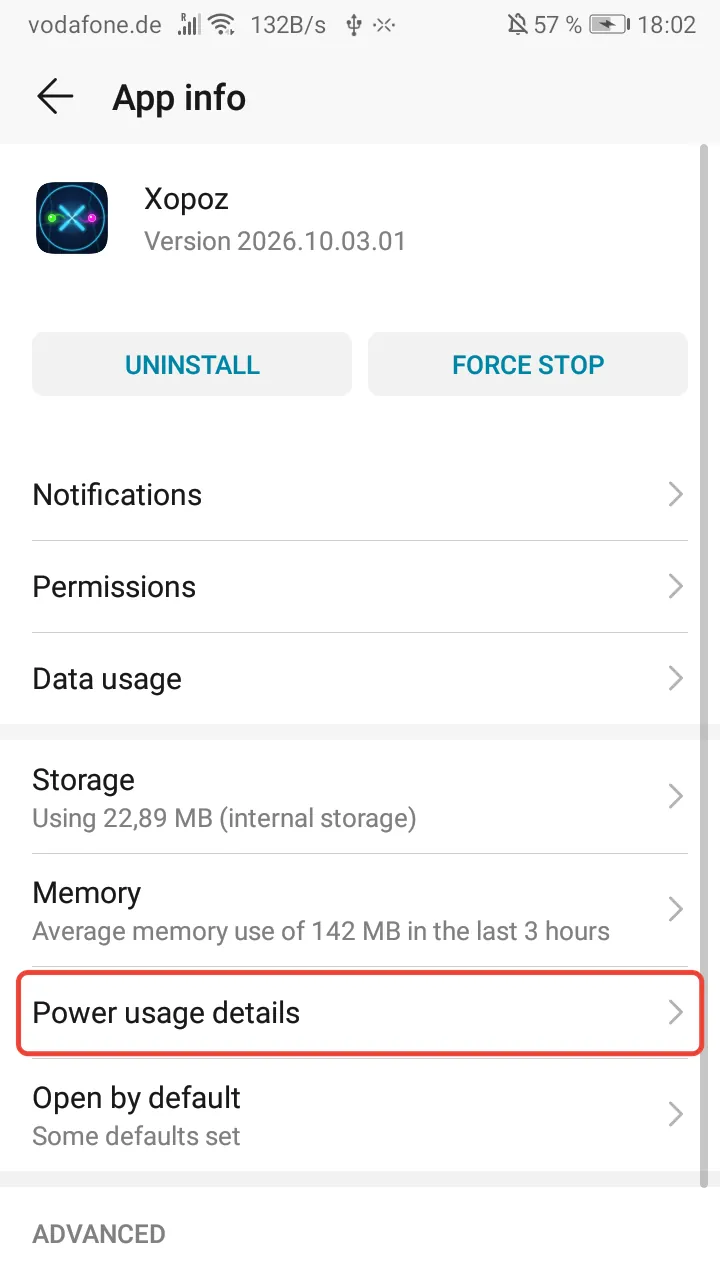
The App info screen of Xopoz opens. Tap Power usage details.
8. Turn off Power consumption alert
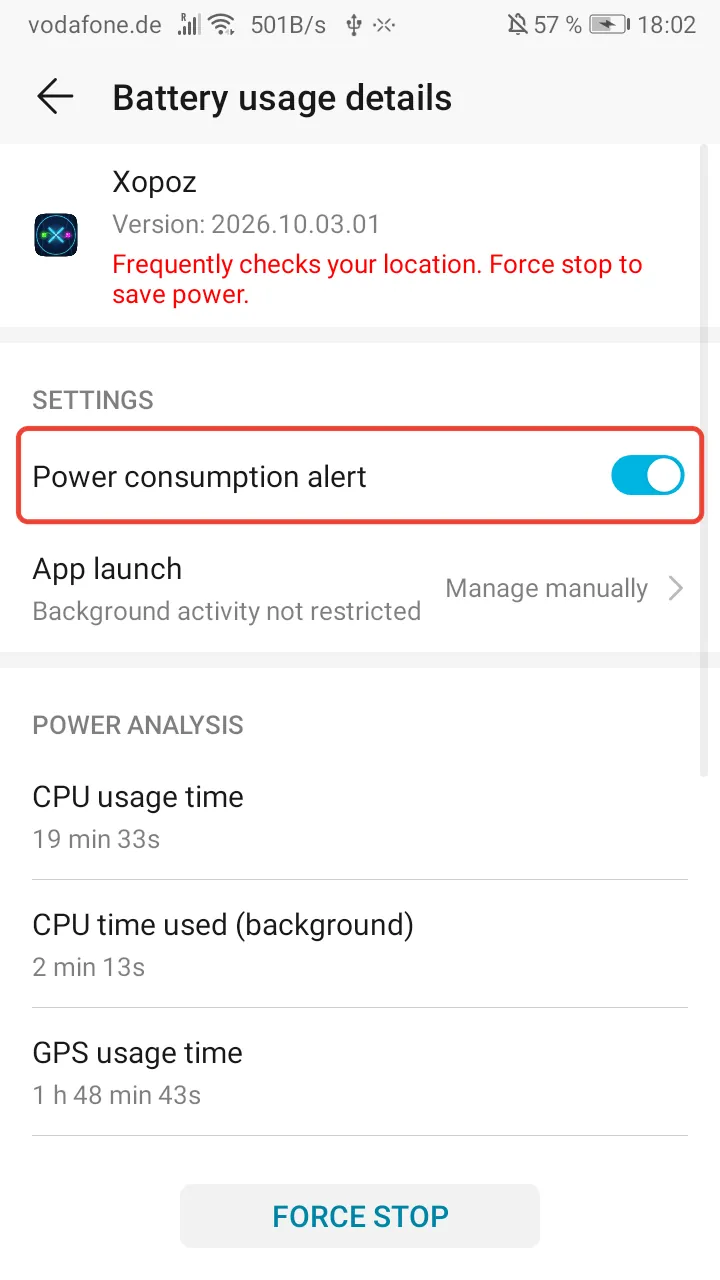
The Battery usage details screen shows a red warning under the Xopoz name. Under Settings, the Power consumption alert switch is on (blue).
Tap the switch to turn it off.
9. Check the result
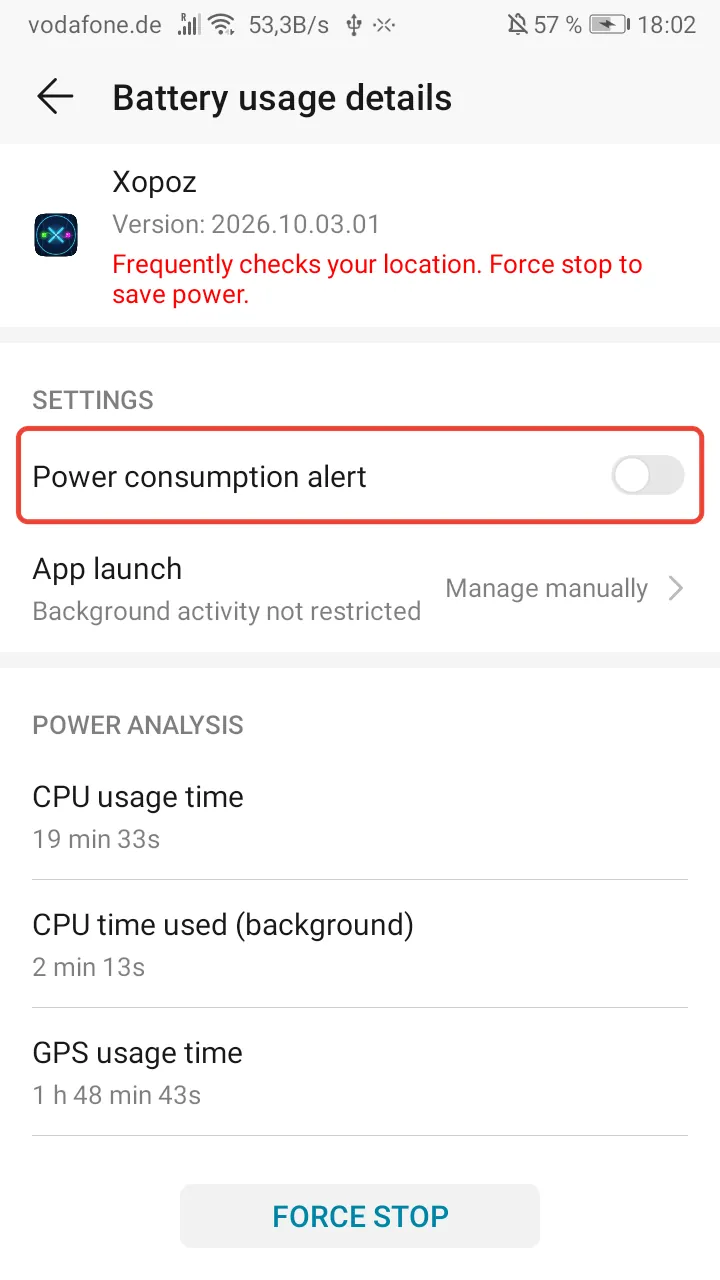
The Power consumption alert switch is now off (grey).
The same screen also shows App launch: Manage manually with “Background activity not restricted”. This confirms that steps 1–5 are done.
The red text under the Xopoz name stays. It only describes how Xopoz uses the battery and does not need any action.
✅ Extra protection: lock Xopoz in recent apps
Open the recent apps screen (the square button, or swipe up from the bottom and hold). Swipe down on the Xopoz card until a small lock icon appears. A locked app is not closed when you tap “clear all”, and the phone is less likely to close it to free memory.
Other phones
Samsung, Xiaomi and other brands have similar battery managers with different names. See Android OS App Killing Troubleshooting for the settings on those phones and for ADB checks for advanced users.
🔍 Key Takeaways
- Not a crash: “System killed Xopoz” means the phone closed the app in the background.
- The time shown is the last position received. Xopoz may have been running for longer.
- Battery optimization is not enough on Huawei and Honor phones. Also set App launch to manual and turn off Power consumption alert for Xopoz.
- Not sure? Send a support request from inside Xopoz and we will check your logs.