Public Edition Notice: This document describes Xopoz features and behaviours at a functional level. Internal implementation details, cryptographic parameters, data schemas, and proprietary algorithms have been intentionally omitted.
Xopoz is a privacy-first, battery-efficient GPS team tracking application for Android. It combines cryptographically protected location sharing with intelligent power management, delivering professional-grade security without compromising on reliability or battery life.
Teams coordinate through real-time location tracking, dual-mode point-of-interest management, and complete autonomy over map tile servers — with no dependency on Google Maps or any third-party mapping provider. All sensitive location data is processed and encrypted locally before any network transmission, ensuring that even a compromised server cannot expose user positions.
Primary Purpose
The application enables teams to share real-time GPS positions, manage geographical points of interest, monitor geographic boundaries, and coordinate field activities through a centralized mobile platform. All location data is processed locally; sharing is strictly opt-in.
Core Functional Areas
Real-time GPS tracking with adaptive, battery-intelligent power management
Team coordination with encrypted, real-time position sharing
Points of Interest — private personal collections and shared team collections
GeoFencing — automated entry/exit alerts for geographic areas
Emergency SOS — encrypted team-wide distress notification
GPX Track management — import, visualize and style recorded routes
Run sessions — live workout tracking (time, distance, average speed) from GPS, saved as tracks
Privacy controls — granular GDPR-compliant data management
Data export — GPX, CSV and JSON formats for backup and analysis
What Makes Xopoz Different
Most location-sharing applications fall into one of two categories: consumer-grade apps that trade user privacy for convenience, or privacy-focused tools that lack team coordination capabilities. Xopoz occupies a unique position by combining both without compromise.
No Google dependency: Xopoz uses the native Android GPS system directly. It works on any Android device including custom ROMs and de-Googled phones. Map tiles come from user-configurable servers — not locked to any third-party provider
End-to-end encrypted location tracking: GPS coordinates are encrypted on the device before leaving it. The server stores only ciphertext and holds no decryption keys. Each team uses independent encryption keys
Designed for professionals, not consumers: Built for field teams — construction, logistics, security, outdoor expeditions — where reliability, privacy, and battery life matter more than social features. No advertising, no data monetization, no phone number required
Device-centric architecture: Each physical device is an independent tracking entity. A user with three devices appears as three separate team members, each with its own position, visibility, and encryption
Battery-intelligent tracking: Hardware motion sensors detect movement at near-zero power cost. GPS activates instantly on movement and powers down during stationary periods
Works in constrained environments: Position data is cached locally and synchronized when connectivity returns. Private tile servers can be deployed for air-gapped or restricted-network operations
Dual privacy controls: Two independent permission axes — local storage and team sharing — create four distinct privacy modes. Time-based intraday tracking enforces business-compliant work hours
Zero data monetization: The server cannot read GPS positions or messages. Privacy is structural, not just a policy promise
Production Scope —
The following features are implemented and deployed in production:
Real-time device tracking
Encrypted GPS storage
Multi-device per user architecture
Team management
Private and shared Points of Interest
Background GPS tracking
Token authentication
Position history storage
Map display and real-time updates
Implemented but still evolving: Geofencing engine
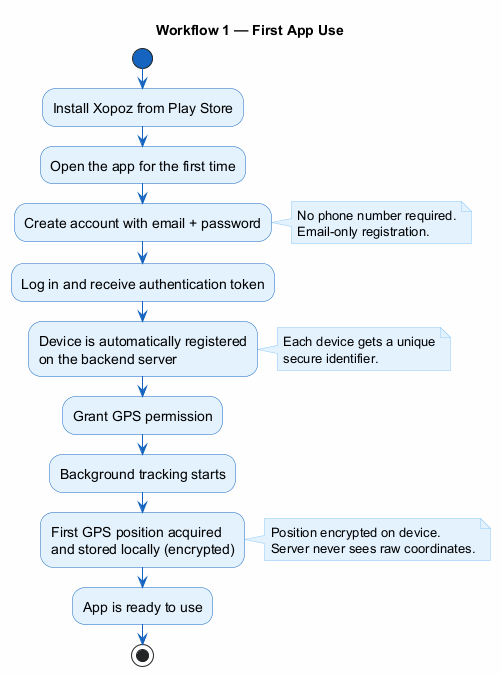
Workflow — First App Use
The following diagram illustrates the complete onboarding flow from installation to the first encrypted GPS position:
Target Platform
Android mobile devices with GPS capability, targeting Android 7.0 and above. Location permissions and internet connectivity (for map tile downloads and team synchronization) are required.
Out of Scope
Xopoz is a location-tracking application, not a fitness or medical device. It performs no health monitoring and no heart-rate analysis: no physiological or biometric data is collected, and there is no heart-rate measurement, no heart-rate zones, and no integration with heart-rate sensors or wearables. Run sessions report only GPS-derived time, distance, and speed.
2. Map Module
The Map Module is the primary interface for location visualization, real-time GPS tracking, and team coordination. It provides full mapping functionality built on an open tile server architecture, with no lock-in to any commercial mapping provider.
Navigation Modes
Three distinct navigation modes adapt the map interface to different operational contexts. Users switch between modes either explicitly or through automatic detection of their interaction patterns.
Tracking Mode
The map continuously follows a selected team member's position. Each incoming location update automatically re-centres the view, preserving the user's chosen zoom level. The mode remains active until the user manually interacts with the map or switches explicitly.
Free Navigation Mode
The user has full manual control over map position and zoom without any automatic interference. Location updates continue to be received and displayed, but they do not affect the viewport. The system switches to this mode automatically when the user begins panning or zooming manually.
Measurement Mode
The map transforms into a precision distance-measurement tool. Users can place multiple points and receive real-time distance readouts between them. A grid overlay and crosshair reference aid spatial estimation. Measurements persist until explicitly cleared.
GPS Location Tracking
Real-time Position Acquisition
Xopoz uses the device's native GPS system directly, bypassing third-party location fusion services. This provides pure satellite-based positioning, works on all Android devices including custom ROMs, and gives the application precise control over power consumption. The system operates in two complementary modes — high-precision GPS tracking during active movement, and a lower-power network-assisted mode during stationary periods — with fully automatic transitions between them.
Movement Detection
The application continuously evaluates incoming positions against a proximity and speed threshold combination. When movement is detected, the user's map icon switches from a static circle to a directional arrow indicating heading. This provides immediate team-wide visual feedback about which members are in transit.
Location History Trails
Position history trails are rendered as connected line segments behind each team member's icon. Trail duration is user-configurable using independent day and hour controls, supporting windows from approximately one hour up to about ten days (the day control is capped at ten days to keep map rendering responsive). Trail visibility can be toggled in real time without losing historical data.
Map Display Features
Custom Map Tile Servers
Users have complete control over map tile sources. Any compatible raster tile server can be configured by providing a server name, base URL template, supported zoom range, tile dimensions, image format, and attribution text. Multiple visual styles per server are supported through a URL token system, allowing runtime switching between satellite, terrain, street, and custom views.
Supported Use Cases
Military / Enterprise: Private, air-gapped tile servers for sensitive operations
Custom Styling: Specialized appearances such as night mode or high-contrast views
Offline Deployment: Local tile servers that function without internet access
Cost Management: Avoid third-party API usage limits and associated costs
Tile Format Requirement: Only raster image tiles (PNG, JPG, WEBP) are supported. Vector tile formats are not compatible with the underlying mapping library.
Several servers are built in and ready to use — a default street/topographic server ("Europe"), OpenStreetMap, and satellite imagery (EOX Sentinel-2 cloudless and Esri ArcGIS World Imagery) — and users remain free to add or replace them with any raster tile server of their choice.
Map Server Management
Users can create, edit, and delete custom tile server configurations directly from the settings. A built-in connectivity check tests the server URL and reports success or failure, ensuring configuration is correct before use.
Visual Reference System
A centred crosshair marks the map reference point used for POI creation and location sharing. An optional grid overlay helps with distance estimation and navigation planning. A North indicator is permanently displayed at the top of the map interface.
Zoom and Navigation Controls
Standard pinch-to-zoom and pan gestures are supported with persistent zoom level memory across sessions. Hardware volume buttons provide hands-free zoom control — useful when wearing gloves or when the screen cannot be touched. A single press zooms one level; holding the button continues zooming continuously.
Compass & Navigation System
An advanced compass overlay provides real-time directional guidance using the device's rotation sensor, combined with multi-stage signal smoothing for stable, accurate heading display.
Compass Capabilities
Numerical Azimuth: Live degree readout (0–360°) displayed below the compass circle
North Alignment Feedback: Compass background changes to green when the device points within a few degrees of north — ideal for orienting the map
Outlier Handling: Advanced filtering prevents the compass from freezing during rapid direction changes
Landscape Suppression: Compass automatically hides in landscape orientation to avoid sensor orientation errors
Tilt Detection: Compass is only shown when the device is held approximately flat, with hysteresis to prevent flickering
Precision Heading Line
A full-length directional line extends from the user's position to the screen edge, showing exactly where the device is pointing. At any zoom level — from street to regional — users can identify distant landmarks, mountain peaks, or geographic features they are physically facing, then correlate them with the map for accurate navigation planning.
Speed Indicator
A real-time speed readout appears between the compass and the map mode label whenever the user is in motion. The speed is computed from time-sampled GPS positions to compensate for varying GPS update intervals. Values are displayed as whole numbers with space-separated thousands for readability at high speeds.
Team Member Visualization
Member Icon System
Each team member is represented by a dynamically generated circular icon containing their initials or chosen emoji and their assigned colour. Stationary members appear as smaller circles; moving members display a larger directional arrow showing their heading. This gives instant situational awareness of team activity across the map.
Online / Offline Status
A visible border distinguishes online from offline members. Online members show a thin white outline; offline members display a thicker red outline at reduced opacity. These indicators update in real time as team members connect or disconnect.
Run Session — Live Workout Tracking
A Run Session turns the map into a live workout tracker. Started with a single tap from the navigation drawer, it overlays a real-time panel showing elapsed time, distance covered, and average speed — all derived purely from GPS. The drawer entry toggles between "Run" and "Stop", and a short double-buzz confirms each start and stop.
Live metrics: a running chronometer plus continuously updated distance and average speed, shown in large, legible digits
Outlives the map: the session keeps counting if the user leaves the map screen, and the live panel is restored on return
Precise tracking guaranteed: starting a run holds GPS in high-precision mode for the whole session, so tracking never drops to power-save while a run is active
Automatic save: on stop, the run is saved as a track — drawn in the user's own device colour — in a dedicated "myRuns" collection, and the summary panel lingers briefly before clearing
Run sessions report only location-derived figures (time, distance, speed) and never any health or heart-rate metric.
Map Control Functions
Seven floating action buttons give quick access to core mapping functions without entering menus:
Share Location: Exports the current map centre coordinates
Add POI: Creates a point of interest at the crosshair position
Centre Location: Snaps the map back to the user's current GPS position
Zoom In / Out: Programmatic zoom controls
Toggle Trails: Show or hide location history trails
Distance Tool: Enable or disable the measurement overlay
Grid Overlay: Toggle the reference grid
A slide-out navigation drawer provides access to additional functions including track management, geofencing, emergency SOS, map style selection, theme switching, and audio notification controls.
3. Teams Module
The Teams Module manages team composition, device membership, real-time position sharing, and map navigation to specific team members. The module follows a device-centric architecture: each physical device is treated as an independent tracking entity, not grouped by user account.
Team Organization
Default State
On first launch, users belong to no team. GPS data stays on the device only and is never transmitted to any server until the user explicitly creates or joins a team. Users may leave a team at any time to stop sharing their position.
Member Roster
The team roster displays all members in a card layout showing their avatar, display name, abbreviated ticker, last-known coordinates (if shared), last-seen timestamp, online/offline status, battery level (shown in red below 20% as an early low-power warning), and role designation. A user with multiple enrolled devices appears as a separate row per device, each with independent status and location.
Roles
Three roles govern team permissions: Creator (full administrative rights, non-removable), Admin (can manage members and settings), and Member (standard participation).
Device-Focused Architecture
Each device entry in the team list has its own visibility toggle and navigation action. Tapping any device row navigates directly to that device's current map position. Distances to the primary device are displayed with smart formatting — metres for nearby devices and kilometres for distant ones.
Member Management
Team Creation
Creating a team involves registering it with the server and establishing a cryptographic key material that underpins all encrypted position sharing for that team. The server stores only a verification token — it never holds the encryption key itself. This design ensures that position data stored on the server cannot be decrypted by the server operator.
Security Properties of Team Creation
Encryption keys are generated and stored on the originating device
The server receives only a proof of key possession, never the key itself
All GPS positions for this team are encrypted with team-specific keys before transmission
Server compromise does not expose team position data
Team Joining
Invitation Tickets
Team administrators generate a shareable invitation ticket through the "Add Device" interface. This ticket contains everything a new device needs to join the team and participate in encrypted position sharing. Tickets are displayed in a large, copy-friendly format and can be shared through any communication channel chosen by the team — SMS, email, or a messaging application.
Joining Process
A new device joins by entering the received invitation ticket into the "Join Existing Team" dialog. Before joining, the user must accept a privacy agreement confirming consent to position sharing. The system validates the ticket, securely stores the team's encryption material on the device, and registers membership with the server using a challenge-based proof — demonstrating key possession without transmitting the key itself.
Key Export Policy
Team encryption keys may leave the originating device during the onboarding process. This export occurs only once, through an out-of-band communication channel chosen by the user, and is a deliberate design requirement to support multi-device and multi-user teams. The application does not use hardware-bound or non-exportable key storage.
Post-Join Behaviour
After a successful join, both parties immediately see each other in their Teams list. Encrypted position sharing begins automatically. Team membership persists across application restarts.
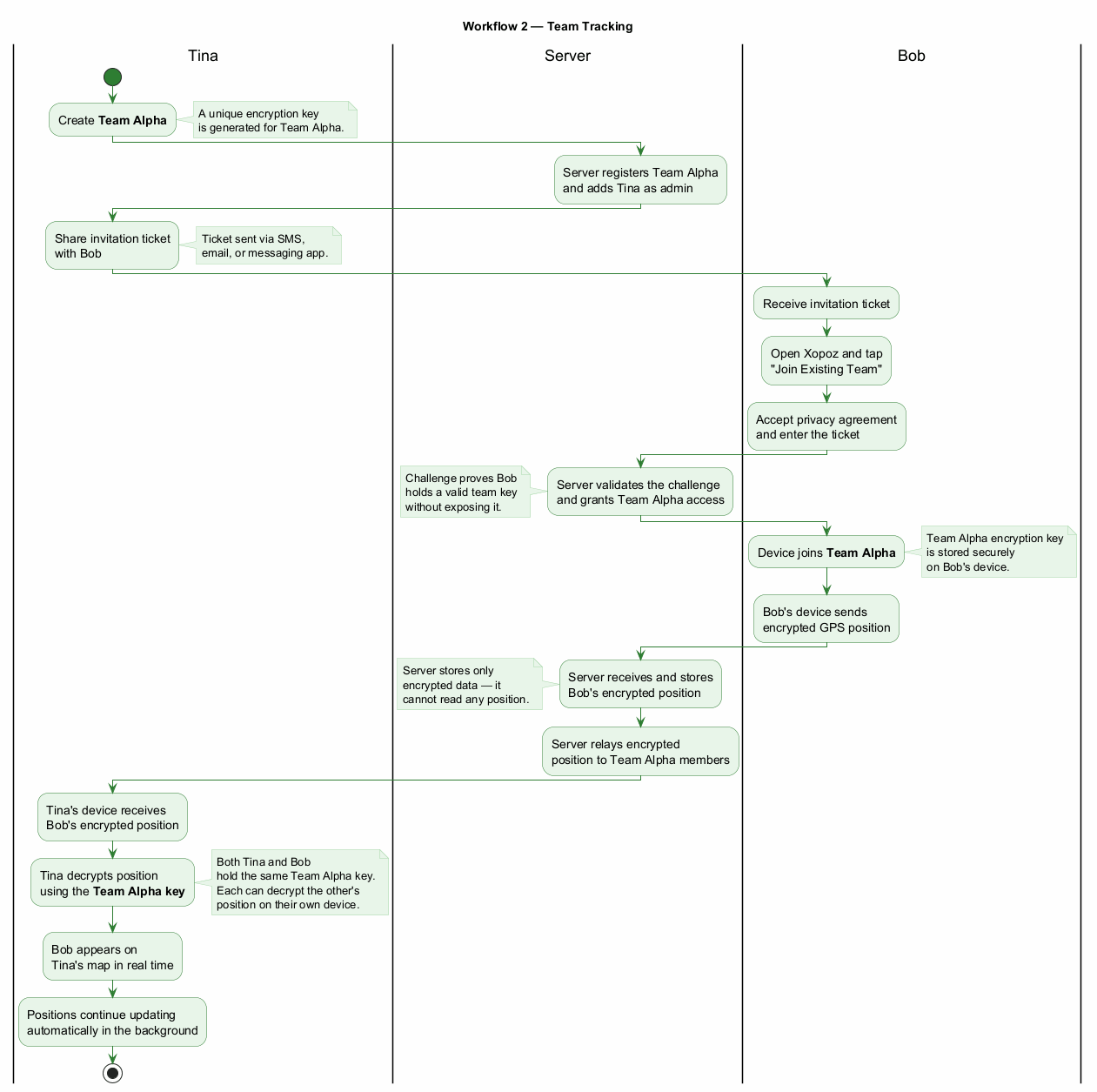
Workflow — Team Tracking (End-to-End)
The following diagram shows the complete flow: Tina creates a team, Bob joins via invitation ticket, and encrypted positions are exchanged through the server — which never has access to the actual coordinates:
Team Visibility Controls
A hierarchical tree of checkboxes gives users granular control over which teams and individual devices appear on the map. Team-level controls and device-level controls operate independently. Visibility preferences are persisted locally and broadcast immediately to the map without requiring an application restart.
Real-time Updates
Team member data refreshes automatically on a configurable interval. A short-lived local cache prevents excessive server requests while keeping location information reasonably current. Each member's connection status reflects whether they are actively sharing data and how recently their position was updated.
4. Points of Interest Module
The POI Module provides hierarchical geographical bookmark management with folder organisation, drag-and-drop rearrangement, team collaboration, cloud synchronisation, and export capabilities.
Point Management
Creating POIs
Points are created using the map's crosshair position as the target coordinate. Each POI carries a user-defined name, optional description, GPS coordinates, a configurable proximity radius, creation and update timestamps, creator attribution (the creator's display name — a mutable label, not a stable identifier), and privacy classification. The name field requires at least one character; radius can be adjusted within a defined range with a sensible default.
System Limits
Up to 100 POI groups per user
Up to 100 POIs per group
Total capacity of up to 10,000 POIs across all groups
POI Actions
Each POI provides four primary interactions: view on map (centred on the POI location), edit name and description, delete with confirmation, and map-drag repositioning. Drag repositioning is initiated by a long-press on the map marker; the position updates automatically on release without any additional save step.
Import and Export
POI collections can be exported to a structured file format for backup purposes and re-imported on any device. During import, duplicate POIs are resolved by keeping the most recently updated version. This enables manual cross-device synchronisation without a dedicated sync service.
Folder Organisation
POIs are grouped into named folders displayed in an alphabetically sorted, expandable tree. A default "Main" folder holds uncategorised points. Custom folders can be created, renamed, and deleted; deleting a folder removes all contained POIs after confirmation. Points can be moved between folders using a long-press drag-and-drop gesture with visual highlighting on valid drop targets.
POI Group Visibility
Each folder header includes a visibility checkbox that controls whether the folder's POIs appear on the map. This allows users to reduce map clutter without deleting or reorganising points. A coloured bar identifies each folder's colour. Visibility preferences persist across sessions and default to visible.
Private & Shared POI Architecture
The POI interface is divided into two distinct tabs — Private and Shared — supporting both personal bookmarks and team-wide collaboration simultaneously.
Private POIs
Personal POIs are visible only to the creating user. They use the full folder organisation system, export/import workflow, and all standard POI management features. The last-used folder is remembered across sessions for convenience.
Shared POIs
Shared POIs are associated with a specific team and are visible to all members of that team. Each team maintains an independent namespace of shared collections. When creating a shared POI from the map, the user selects the target team and target collection; the system remembers the last-used combination per team. Shared collections support collaborative editing: any team member can add, edit, rename, or delete points and groups.
Cloud Synchronisation
A collection-based API manages cloud synchronisation of POI data, treating entire collections as atomic units to avoid complex per-point conflict resolution. A time-validated local cache prevents unnecessary API calls; on API failure, the system falls back to the most recently cached data.
Local Database Persistence
POI data is persisted in a local database for improved reliability and sync readiness. POI and folder identifiers are generated client-side before server synchronisation, with uniqueness enforced per owner and per group. Each record tracks its synchronisation state (pending or synced), and server data is merged using an upsert strategy.
Data Export & Import
POI backup exports a complete snapshot of the folder hierarchy and all point metadata to a timestamped file accessible through the device's standard file-management interface. Restoring from backup merges imported data with existing collections, with timestamp-based conflict resolution.
5. GeoFencing Module
The GeoFencing Module enables automated location-based alerts. Users configure which team members to monitor, which geographic areas to watch, and which boundary-crossing events should trigger notifications.
Alert Configuration
Alert setup is structured around three choices: WHO (which devices to monitor), WHERE (which POI-defined areas to watch), and WHAT (entry, exit, or both). A real-time confirmation panel summarises the current configuration and guides the user through required selections before saving.
Device Selection
All enrolled team devices are presented in collapsible team sections. Team-level controls allow bulk selection; individual controls allow precise targeting. Selection state is preserved during navigation within the dialog.
Area Definition
Monitoring zones are defined by existing POIs — the POI's centre coordinate and configurable radius form a circular boundary. Private and shared POIs are displayed in separate categorised sections with expandable group organisation. Multiple areas can be monitored simultaneously.
Monitoring Architecture
Geofencing uses a push-based, device-side detection model. Monitored devices perform local boundary calculations using the existing location acquisition system — no additional GPS overhead is introduced. When a device crosses a configured boundary, it sends an encrypted notification to monitoring devices through the team messaging layer.
Key Properties
Privacy-first: All boundary detection occurs on user devices; no position data is sent to the server for geofence processing
End-to-end encrypted: Geofence event notifications use the same team-specific encryption as all other messages
Offline resilient: If a device is offline when it crosses a boundary, the event is queued locally and delivered automatically when connectivity is restored, with no expiry
Oscillation prevention: A minimum interval between successive entry/exit events prevents rapid trigger cycling near a boundary
Geofence configurations and event history are stored locally on the user's device. No geofence rules are transmitted to or stored on any server.
Event History & Navigation
A dedicated history view lists all received geofence events in reverse chronological order. Each entry shows the event type (entered or exited), the device name, the monitored area name, and a timestamp. Timestamps show time only for today's events and include the full date for older events, automatically converted to the user's local timezone.
Tapping any history entry navigates to the map and begins tracking the responsible device, showing its current position for immediate situational awareness rather than the historical event location.
6. Emergency SOS System
The Emergency SOS system provides a structured, encrypted distress notification workflow through the team messaging infrastructure. It is designed to complement — not replace — official emergency services.
Emergency Workflow
Activating an SOS alert requires multiple deliberate user actions to prevent accidental activation. The flow proceeds through: opening the navigation drawer, selecting "Alert", choosing the target team(s), composing an optional message (current GPS coordinates are attached automatically), and confirming the transmission.
Important: This is not a one-touch panic button. Multiple confirmation steps are intentional.
Encryption & Delivery
Emergency messages use the same cryptographic infrastructure as all team communications. GPS coordinates and message payload are encrypted separately using team-specific keys. The same emergency transmitted to multiple teams is encrypted independently for each, preventing cross-team exposure. All encoding ensures reliable binary-to-text conversion for consistent transmission and decoding across all devices.
Emergency messages are stored on the backend server and delivered to each team member the next time their device performs a position synchronisation. Delivery speed therefore depends on how frequently team members' devices are actively sharing location data.
Stress-Optimised Interface
All emergency-related screens use enlarged fonts (approximately double the standard size), high-contrast red backgrounds with white text, and oversized touch targets to ensure usability for users experiencing high stress or impaired motor control. Cancel and Send buttons are positioned at opposite extremes of the screen to prevent confusion. Received alerts trigger a full-screen popup with alarm audio and a persistent high-priority notification.
System Limitations
Network Dependency: Emergency messages cannot be sent or received without an active internet connection. This system has no offline capability.
Recipients must have the application's background service running to process incoming alerts
Delivery speed varies with team member activity levels and network availability
Communication is limited to Xopoz team members — external emergency services cannot be reached through this system
Always contact official emergency services first in life-threatening situations
No Guarantee of Reliability: Xopoz is a location monitoring aid and does not claim to be 100% reliable. The application cannot be held responsible for incidents, accidents, or any adverse outcome arising from reliance on its features. Real-life emergency situations introduce unpredictable factors entirely outside the application's control:
User stress: under pressure, users may tap incorrect buttons, miss confirmation steps, or misread on-screen information.
Insufficient battery: a device with low or depleted battery cannot send or receive alerts or maintain background services.
Network connectivity: poor, intermittent, or absent mobile data or Wi-Fi will prevent position sharing and alert delivery.
GPS signal quality: dense buildings, underground locations, heavy foliage, or adverse weather can degrade or block GPS reception.
Operating system behaviour: Android and modified Android distributions (such as EMUI, MIUI, ColorOS, OneUI) may exhibit unpredictable behaviour regarding real-time scheduling, background service management, and GPS access.
Device limitations: hardware defects, insufficient storage, or other device-specific issues.
Human factors: failure to charge the device, forgetting to enable location permissions, not joining the correct team, or misconfiguring settings.
This list is not exhaustive. Other unforeseen factors may affect the application's operation.
Users must always treat Xopoz as a supplementary tool, maintain independent emergency plans and backup communication methods, and call official emergency services first in life-threatening situations.
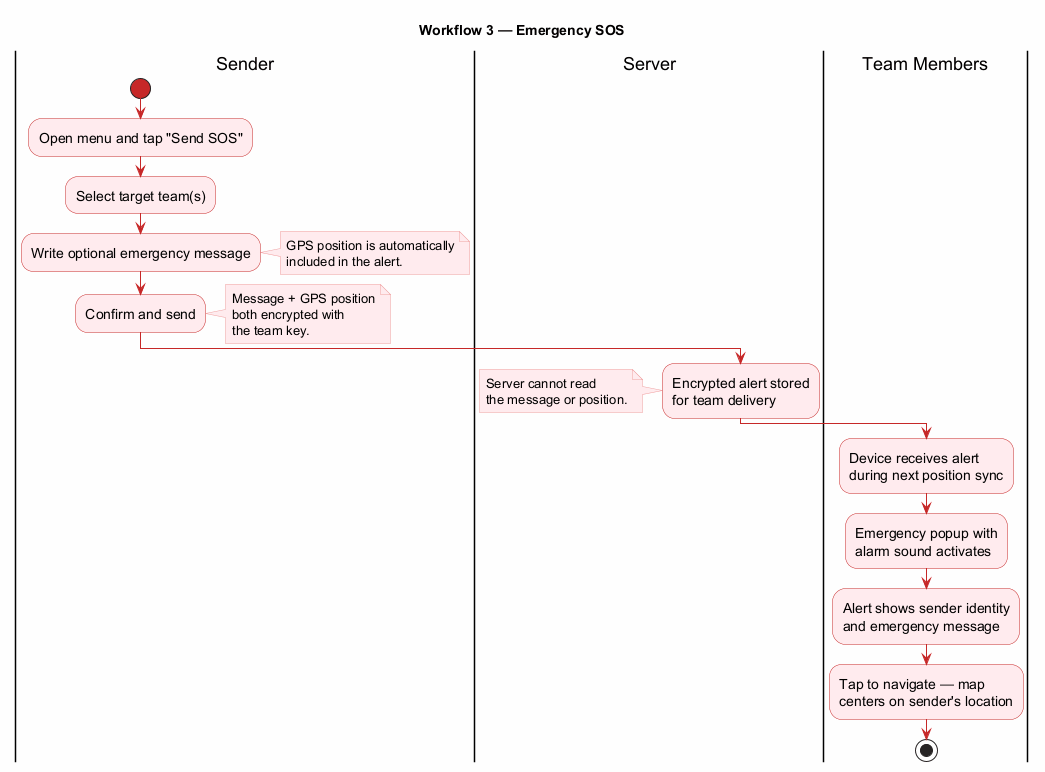
Workflow — Emergency SOS
The following diagram shows the end-to-end emergency alert flow, from the sender pressing SOS through encrypted delivery to team members receiving the alert with map navigation:
7. Settings Module
The Settings Module provides comprehensive application configuration covering user identity, device appearance, location services, licence management, privacy controls, and data operations.
User Profile & Device Configuration
Account Registration
Account creation requires only an email address and password — no phone number is collected. A verification email is sent to complete registration, and the account creation screen links directly to the Terms of Service and Privacy Policy so users can review data-handling terms before registering. Additionally, enterprise customers may be provisioned with a direct login token by an administrator, bypassing the standard email registration entirely. The login field accepts both email addresses and provisioned tokens without restriction.
Password Management
Authenticated users can change their password directly. Users who have forgotten their password can request a reset via email — the system sends a reset link without revealing whether the account exists. Password reset links open directly in the app via deep linking, with a fallback page for non-Android devices.
Profile Information
Users configure a display name (shown to team members) and a short ticker abbreviation (2–4 characters, used in map icons). Device settings include an auto-detected device name (user-editable), device type category, and independent visual customisation per device.
Device Visual Customisation
Each device has an independently chosen background colour and an emoji icon selected from a curated grid of device-themed symbols. Selections take effect immediately across all application interfaces, including the map and the team roster.
Location Services Configuration
GPS access is managed through an intelligent dynamic strategy: high-frequency updates while the map is visible and active, transitioning to a user-configurable background interval when the application is not in the foreground. The background refresh period is adjustable continuously within a defined range. Trail duration — the window of location history retained for display — is independently configurable with a separate control, defaulting to twelve hours.
Audio notification support allows users to configure custom sonar-style sounds with file selection from device storage.
Privacy & GDPR Controls
Dual Privacy Control System
Two independent privacy toggles operate separately, providing four distinct privacy configurations:
Local Storage
Team Sharing
Effective Behaviour
Enabled
Enabled
Full tracking: local history stored and shared with team
Enabled
Disabled
Private mode: local history only, user appears offline to team
Disabled
Enabled
Minimal footprint: team sees position, no local history kept
Disabled
Disabled
Maximum privacy: GPS collected for device use only, nothing stored or shared
When team sharing is disabled, a prominent warning banner appears in the Teams tab to remind the user that teammates will not receive location updates.
GDPR Compliance
All location processing requires explicit prior user consent. Consent is requested at team creation and team joining, with a mandatory checkbox and a timestamped audit record. Users may withdraw consent at any time. Data retention is user-configurable. A three-tier deletion system allows targeted removal of server history, all local data, or complete account deletion — each irreversible and requiring confirmation.
Data Protection Measures
Server logs never contain GPS coordinates — coordinates are stripped to integer precision before any logging
Secure file deletion overwrites data before unlinking
Android system backup is disabled at all levels to prevent position data leaking through cloud backup channels
No automated backups are created without explicit user action
Account and licence survive application uninstall to allow reinstallation with the same credentials
Licence Management
A dedicated licence section displays licence type, expiry date, and current validity status. Licence information is retrieved from the server on demand, cached locally for an extended period, and automatically refreshed when the cache expires. Expired licences are highlighted in red. A manual refresh button is provided for immediate licence validation.
Intraday Tracking
Intraday tracking provides business-compliant time-based location controls, allowing tracking to operate only within configured hours — for example, during a working shift. Start and end time controls are independently configurable. When both are set, tracking activates at the start hour and stops at the end hour every day. Invalid configurations (such as an end time earlier than the start time) are flagged with a red error message and tracking is suspended until corrected.
Enforcement is event-driven: active GPS sessions terminate immediately when a restriction activates, and resume automatically on the next natural device event (screen activation, motion detection, or device wake) when the window reopens. No background timers are required, keeping battery impact negligible. A "Intraday blocked" indicator appears on the map when tracking is currently suppressed.
Data Management
Location history can be exported in GPX format for navigation application compatibility or CSV format for spreadsheet analysis. A three-level deletion system covers server history only, all local application data, and complete account removal. All deletion operations require explicit confirmation and are permanent.
Application diagnostic logs can be enabled, exported for support purposes, and cleared through the settings interface.
8. Technical Architecture
GPS Strategy
Xopoz uses the device's native GPS system API rather than any third-party location service. This architectural decision provides several practical advantages:
Universal compatibility: Functions on all Android devices, including custom ROMs and devices without Google Play Services
Direct hardware access: Bypasses any third-party location fusion layer, providing unfiltered satellite positioning
Controlled power management: The GPS chip is powered down within seconds after position acquisition and re-activated only when needed
Reduced dependencies: No reliance on external services that could be unavailable, regionally restricted, or updated in incompatible ways
Service Architecture
A persistent foreground service maintains location tracking when the application is not visible. The service displays a minimal persistent notification so users are always aware it is running and can terminate it if desired. GPS operations execute on a dedicated background thread to prevent any impact on the user interface. Wake management ensures the GPS system is not throttled by the operating system during background operation.
Language
The application is available in English only. No language selection interface is provided.
Minimum Requirements
Android 7.0 (API level 24) or above. Fine location permission, battery optimisation exemption, and internet connectivity are required for full functionality.
9. Background Services & Battery Optimization
Xopoz implements a multi-layer adaptive power management system that dynamically balances location accuracy with battery efficiency based on movement patterns, user interaction, and device state.
Power State Model
The system operates in two primary states that switch automatically:
Active state: High-precision positioning with both GPS and network providers enabled, used during movement, active map viewing, and recent user interaction
Power-save state: Network-assisted positioning only, with extended intervals, used during confirmed stationary periods
"Wake Fast, Sleep Slowly" Principle
The transition logic follows an asymmetric timing approach optimised for user experience. Any detected movement or user interaction immediately restores full GPS accuracy. The transition to the power-save state, by contrast, only occurs after a sustained stationary period, preventing premature sleep during brief stops. The map being actively visible always overrides power-saving behaviour regardless of movement state.
Hardware-Assisted Wake
The system leverages the device's hardware motion sensor to detect movement during sleep with minimal power consumption. When motion is detected, the GPS system is immediately re-activated without waiting for a polling interval. The sensor re-arms automatically after each trigger. Screen activation events also trigger GPS re-activation, with rate limiting to prevent battery drain from frequent screen toggles.
Adaptive Frequency Management
Update frequency adjusts dynamically based on context: highest frequency when the map is visible, moderate frequency during active background tracking, and lowest frequency during extended stationary periods. During low battery conditions, intervals are gracefully extended while maintaining essential positioning capability.
Team Data Synchronisation
Team member location data is cached locally with a short validity window to balance freshness with server load. Configuration changes are broadcast immediately to all active components without requiring an application restart. Conflict resolution during synchronisation prioritises data freshness while preserving local user modifications.
10. Export & Import Functions
Location Data Export
GPX Format
GPS Exchange format export provides compatibility with navigation and mapping applications. Exported files include complete location history with timestamps, track segments organised by session, and device metadata. The output complies with standard GPX schema requirements for broad compatibility.
CSV Format
Comma-separated values export enables spreadsheet and data analysis workflows. Column headers and clean formatting optimise the data for statistical analysis and visualisation tools.
Points of Interest Export
POI data is exported as a structured file preserving the complete folder hierarchy, all point metadata, and creation timestamps. Files use a timestamped naming convention to avoid conflicts. Exported POI files can be imported to any Xopoz device, with newest-version conflict resolution for duplicates.
Storage Access
All export and import operations use the platform's standard document picker, ensuring compatibility with device storage, removable storage, and cloud storage providers. Correct file type declarations allow receiving applications to handle files appropriately.
11. User Interface Specifications
Navigation Architecture
The primary navigation uses a four-tab layout: Map (default startup), Teams, Points, and Settings. In portrait mode, tabs appear as a bottom navigation bar. In landscape mode, they switch to a side navigation rail for more efficient use of horizontal space. The app supports resizable windows and free orientation on large-screen devices (tablets, foldables, desktop windowing), so the layout follows the device rather than being locked.
Visual Design System
A consistent colour palette is applied throughout all screens:
Primary Blue (#007bff): Buttons, headers, active elements
Dark Blue (#003366): Section headings, emphasis text
Success Green (#28a745): Positive states, online indicators
Danger Red (#dc3545): Delete actions, warnings, emergency states
Neutral Grey (#f8f9fa): Background surfaces
Typography follows a hierarchical scale with 8dp grid alignment. Rounded corners are applied consistently to interactive elements and cards.
Interaction Design
All interactive elements meet accessibility guidelines with minimum touch target sizes. Standard Android gestures are supported: tap for selection, long-press for drag initiation in the POI list, pinch-to-zoom for map scaling, and pan for map navigation. Volume hardware buttons control map zoom when the map is active.
Accessibility
Content descriptions are provided for all interactive elements to support screen readers. The colour scheme meets WCAG 2.1 AA contrast requirements. Dark mode support adapts colours automatically for low-light environments.
Feedback Systems
User actions are acknowledged through brief toast messages, visual state transitions (normal, pressed, disabled, selected), and progress indicators during network operations. The map status bar displays live GPS, network, and intraday tracking state so users always know their current tracking status without entering settings.
Short haptic (vibration) feedback confirms key actions so they can be felt without looking at the screen — including map button presses, distance-measurement drag, joining a team, and sending an SOS. A distinctive longer vibration pattern is reserved exclusively for confirming that tracking has been switched off.
12. Device Security Architecture
Xopoz implements a server-controlled device identity system where each enrolled device receives a unique, server-assigned identifier. Unlike client-controlled identifiers that can be spoofed or fabricated, server-assigned identities can only be generated and validated by the server — eliminating a broad class of impersonation and replay attacks.
Device Identity
A device's identity is established during initial registration and remains immutable. It cannot be transferred between physical devices or modified by client applications. All GPS position records are cryptographically bound to the device identity that generated them, making position-record reassignment detectable.
Encrypted Position Binding
Every GPS position record transmitted to the server is encrypted using keys tied to the specific device identity and team context. The same physical device participating in multiple teams has its positions encrypted independently for each team, with different keys. This provides complete team-to-team data isolation: a member of two teams cannot combine data from one team context to decrypt data in the other.
Multi-Team Membership
A single device may belong to multiple teams simultaneously while maintaining a consistent server-assigned identity across all of them. Each team membership is independently keyed and independently visible on the team roster. This enables shared physical assets (vehicles, field equipment) to participate in multiple team contexts without any cross-team data exposure.
Server Trust Model
The server controls device identity and message routing but cannot decrypt GPS position data. Encryption keys are held exclusively by team member devices. Server compromise reveals only encrypted blobs, not plaintext coordinates. This design provides meaningful location privacy even against a fully compromised backend.
Audit and Compliance
Server-controlled identity enables complete device activity history for audit and compliance purposes. All location-data provenance is verifiable and tied to a specific server-assigned device identity, supporting forensic investigation when required.
13. Backend Server
Proprietary Web API
Xopoz operates as a full-stack system. The Android application communicates over HTTPS with a dedicated, proprietary backend web API that is part of the Xopoz platform. This server handles user authentication, team management, encrypted position relay, POI synchronisation, messaging, licence validation, and customer support. The API serves exclusively the Xopoz application.
Team Coordination: Team creation, membership management, challenge validation
Position Sharing: Encrypted GPS position storage and relay between team members
Messaging: Encrypted team messages including emergency SOS alerts and geofence notifications
Points of Interest: Cloud synchronisation of POI collections across devices
Licence Management: Licence type and expiration validation
Customer Support: Ticket creation, comments, and file attachments
Client / Server Data Exchange
The client and backend exchange data through a RESTful web API over HTTPS, using JSON messages. Every request to a protected endpoint is authenticated with a signed token, and the client refreshes its session automatically when needed. Sensitive bodies — GPS positions and team messages — travel as encrypted, opaque payloads that the server stores and relays without ever being able to read them.
The client pushes its own data (positions, POI changes, messages) as it occurs and polls lightweight "has anything changed" checks to fetch only what is new, rather than continuously re-downloading full data sets. Changes are applied locally first and queued for the server, so the app stays usable offline and flushes pending updates when connectivity returns; a failed call never discards existing local data. Exact endpoint paths and parameters are maintained in a separate REST API reference document.
Database Security Model
The backend is backed by a relational database designed to be useless to an attacker even in the event of a full database compromise:
Encrypted by Design
GPS Positions: All coordinates are encrypted on-device before transmission. The server holds no decryption keys
Messages: All team messages are encrypted end-to-end with team-specific keys. The server relays opaque payloads
Hashed Critical Values
Team challenges: Stored hashed — cannot be recovered or replayed even if the database is breached
Account tokens: Verification and password reset tokens stored hashed, never in plain text
Passwords: Strong one-way hashing
Plain Text (Non-Sensitive Data)
Metadata: Timestamps, user names, device names, and team names
Points of Interest: Stored unencrypted by design — POIs are linked to a user and shareable across teams, requiring them to be unique and queryable across the system
14. Support Ticket System
Xopoz provides a built-in support ticket system allowing users to create, track, and communicate on support requests directly within the application.
Users create tickets with subject, description, type (Bug Report, Feature Request, Question, Other), and priority
Ticket list with filtering by status, type, and priority
Ticket detail view with chronological comment thread and file attachments
Ticket lifecycle: Open, In Progress, Resolved, Closed
15. Track Manager Module
The Track Manager allows users to import, organise, and visualise GPX route files on the map. It is accessible from the navigation drawer and operates independently of the four main tabs.
Track Groups
Tracks are organised in named, collapsible groups. Groups can be renamed or deleted; deleting a group removes all its contained tracks and points. Each track within a group has independently configurable colour, opacity, line thickness, and line style (solid, dashed, or dotted).
GPX Import
Users select a GPX file through the platform's standard file picker and choose a target group before import. Each track segment in the GPX file becomes a separate named track. A colour is assigned automatically from the application's colour palette at import time. Default rendering uses a mid-weight solid line at full opacity. Xopoz also registers as a handler for GPX files, so a .gpx file opened from another app (a browser download, a file manager, or an email attachment) is routed straight into this same import flow; the association is scoped to local GPX files so Xopoz does not become a catch-all handler in every share sheet.
GPX Export
Any single track held in the Track Manager — whether imported or created in-app — can be exported back to a GPX file via an "Export as GPX" action. A two-step picker selects the group and then the track, and the chosen track is written to a user-named file through the standard save dialog. This complements the Settings-level export of the personal GPS trail, which covers only the user's own live track rather than Track Manager entries.
Point Filtering
Imported tracks pass through a two-stage filtering pipeline before storage to reduce redundant points while preserving route accuracy:
Proximity filter: Consecutive points closer than a minimum distance threshold are dropped, keeping only those that represent meaningful movement
Bearing filter: Applied to larger tracks, this stage removes intermediate points that add no directional information — points whose bearing deviation from the current direction is below a minimum threshold are dropped, while first, last, and direction-changing points are always preserved
Stored metadata per track includes point count, total path distance, bounding box coordinates, journey duration (when GPX timestamps are available), import timestamp, and source filename.
Track Visualisation
Visible tracks are rendered as polylines with the configured style. Point circles are drawn at each kept position. When GPX timestamps are present, tapping a point displays its elapsed time from the journey start. Tapping a track's info row in the list navigates the map to fit the track's full bounding box. Track overlays are managed independently from team member markers and POI markers, so refreshing any one layer does not affect the others.
Track Editing
An edit dialog per track provides controls for name, colour (selected from the shared application palette), opacity (four discrete levels), line thickness (adjustable via a continuous slider), and line style. Changes are reflected immediately on the map.